Booking Statuses Explained
Overview
Section titled “Overview”When you open Sales > Bookings, each row shows a colored status badge. That badge is the quickest way to know what’s happening with a booking. Bloowatch uses five statuses that cover the full lifecycle of a booking, from the moment it’s created to after the session is done.
You can filter the Bookings List by status using the Status filter in the filter row.
Status reference table
Section titled “Status reference table”| Status | Badge color | Description | What triggers it | Editable? |
|---|---|---|---|---|
| Pending | Yellow | The booking exists but hasn’t been paid or confirmed yet. | A customer starts an online checkout without paying, a staff member creates a booking without taking payment, or a quote is sent. | Yes — you can edit all fields, add payments, or cancel. |
| Confirmed | Green | The booking is paid (fully or partially with a deposit) and locked in. | Payment is received — online, via POS, or through a payment link. Staff can also manually confirm a booking. | Yes — you can still edit details, add participants, and process refunds. |
| Cancelled | Red | The booking has been cancelled and won’t happen. | Staff cancels the booking from the three-dot menu (⋯), or a cancellation policy triggers automatically. | Limited — you can view details and process refunds, but can’t revert to Confirmed. |
| Completed | Blue | The session tied to this booking has taken place. | The session date passes and participants were checked in. | Limited — you can view details and issue refunds, but can’t change core booking data. |
| No-show | Grey | The customer was expected but didn’t turn up. | Staff marks the participant as absent during check-in on the Manifests page. | Limited — same as Completed. You can still charge no-show fees if your policy allows it. |
Watch out: There’s also an Abandoned status (Pro and Gold plans). This applies to eCommerce bookings where the customer started checkout but never completed payment. Abandoned bookings are automatically tracked and the session assignment is removed. See feature F190.
Status flow
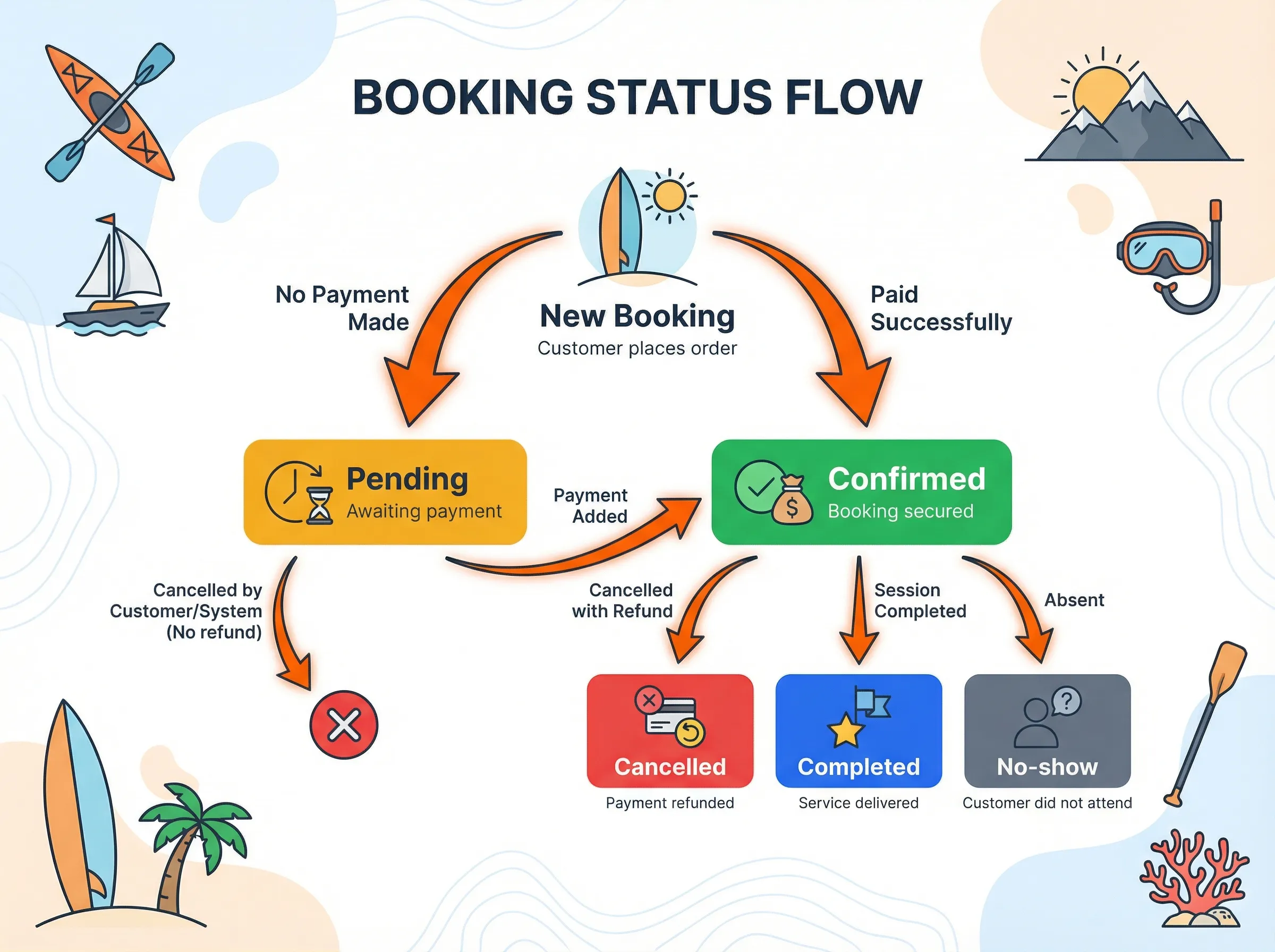
Section titled “Status flow”Here’s how a booking moves between statuses:
New booking │ ├──→ Pending (no payment taken) │ │ │ ├──→ Confirmed (payment added) │ ├──→ Cancelled (staff cancels) │ └──→ Abandoned (eCommerce timeout, Pro/Gold) │ └──→ Confirmed (paid at creation) │ ├──→ Completed (session done + checked in) ├──→ No-show (participant absent) └──→ Cancelled (staff cancels, refund issued)Key rules:
- A booking can go from Pending to Confirmed when payment is added — but not the other way around.
- Cancelled is a terminal status. Once cancelled, a booking can’t be reopened. You’d need to create a new booking.
- Completed and No-show are set after the session date. They’re end-of-lifecycle statuses.
Which statuses allow edits?
Section titled “Which statuses allow edits?”| Action | Pending | Confirmed | Cancelled | Completed | No-show |
|---|---|---|---|---|---|
| Edit client details | Yes | Yes | No | No | No |
| Change products | Yes | Yes | No | No | No |
| Add participants | Yes | Yes | No | No | No |
| Add payment | Yes | Yes | No | No | No |
| Process refund | No | Yes | Yes | Yes | Yes |
| Cancel booking | Yes | Yes | — | No | No |
| Send payment link | Yes | Yes | No | No | No |
| Print invoice | Yes | Yes | Yes | Yes | Yes |
| Create quote | Yes | Yes | No | No | No |
Q: Can I change a booking from Cancelled back to Confirmed? A: No. Cancellation is permanent in Bloowatch. If a customer wants to rebook, create a new booking for them. If a refund was processed, you’ll need to collect payment again.
Q: What happens to the session slot when a booking is cancelled? A: The participant is removed from the session, and the capacity frees up. Other customers can now book that spot.
Q: Does the status change automatically or do I have to update it manually? A: It depends. Confirmed is set automatically when payment comes through (online or POS). Completed and No-show depend on check-in — staff marks attendance on the Manifests page. Cancelled is always a manual action by staff (or triggered by a cancellation policy). Pending is the default when no payment is attached.
Q: Where can I see the status? A: In the Bookings List (Sales > Bookings) as a colored badge on each row. You can also see it in the Booking Detail view, in the Manifest participant list, and in the Booking Sidebar on the Agenda.
Q: What’s the difference between Completed and No-show? A: Both are end-of-lifecycle statuses. Completed means the customer showed up and did the activity. No-show means they were expected but didn’t arrive. No-shows are important for tracking reliability and applying no-show policies (like charging a fee or flagging repeat offenders).
Related workflows
Section titled “Related workflows”- Create a booking — How to create a new booking from the POS or Bookings page
- Manage bookings — How to edit, cancel, and refund bookings
