Request a Data Reset After Testing
Quick path: Contact Support → Request reset → Confirm → Wait for completion
What this helps you do
Section titled “What this helps you do”When you first set up Bloowatch, it’s natural to create test bookings, dummy customers, and trial sessions to learn how things work. Once you’re ready to go live, you don’t want that test data mixed in with your real business.
A data reset clears out your test data while keeping all the configuration work you’ve already done.
Before you start
Section titled “Before you start”- You’ve finished testing and are ready to go live
- You’ve saved or exported any test data you want to keep (reports, customer lists)
- You understand this action is permanent and irreversible
1. Decide if you need a full reset
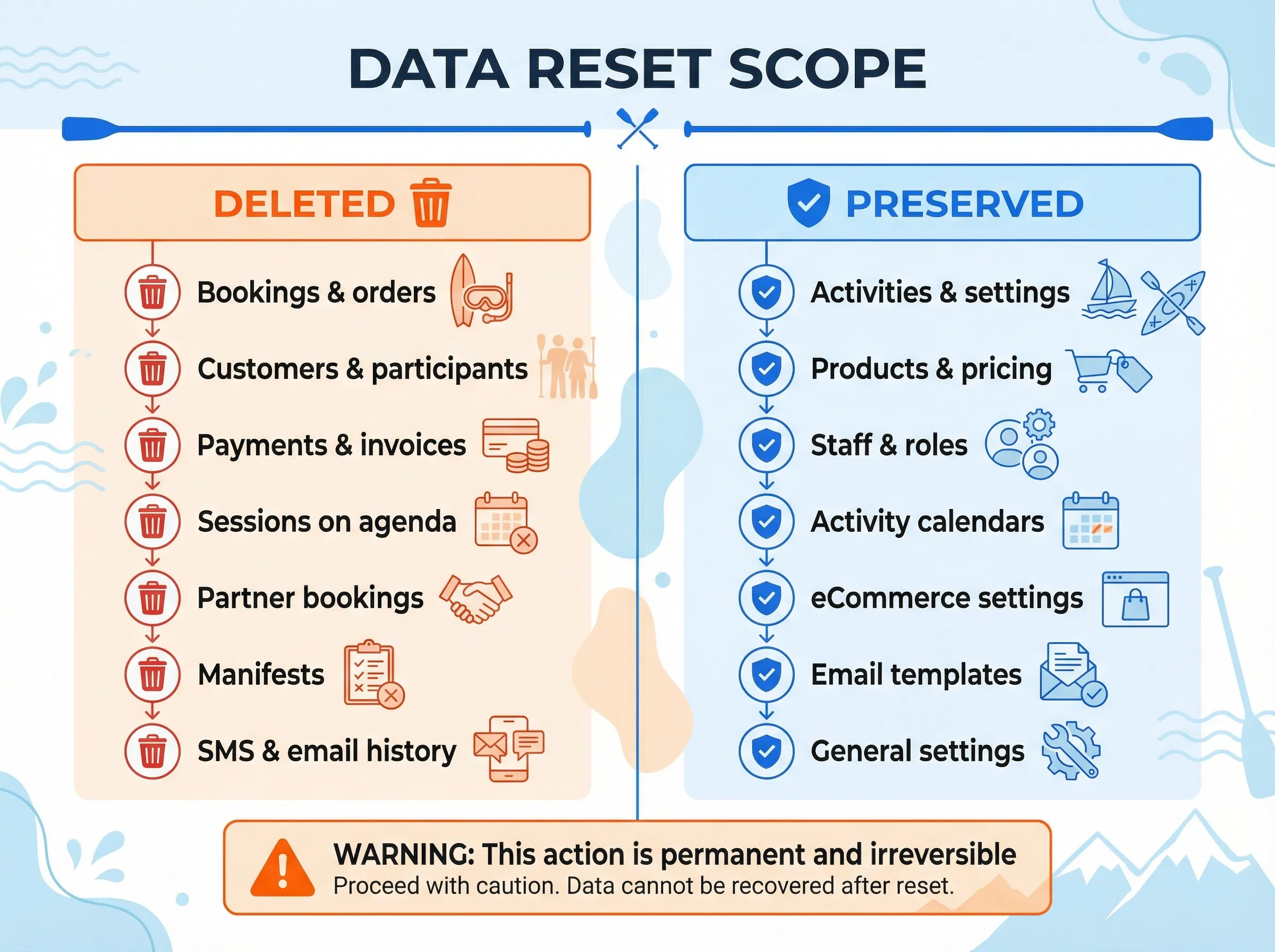
Section titled “1. Decide if you need a full reset”A data reset deletes transactional data — the records created through day-to-day use:
| Deleted (transactional data) | Preserved (configuration) |
|---|---|
| Bookings and orders | Activities and their settings |
| Customers and participants | Products and pricing |
| Payments and invoices | Staff members and roles |
| Sessions on the agenda | Activity calendars |
| Partner bookings and commissions | eCommerce / widget settings |
| Manifests | Email templates |
| SMS and email history | General settings (timezone, currency) |
If you only need to remove a few test records, consider the manual cleanup alternative below instead.
2. Contact Bloowatch Support
Section titled “2. Contact Bloowatch Support”Send a message to Bloowatch Support requesting a data reset. Include:
- Your school name (as it appears in Bloowatch)
- Your account URL (e.g.,
yourschool.bloowatch.com) - Confirmation that you understand the reset is irreversible
You can reach Support through:
- The chat widget inside Bloowatch (bottom-right corner)
- Email at support@bloowatch.com
3. Wait for confirmation
Section titled “3. Wait for confirmation”The Support team will confirm your request and schedule the reset. This is typically done within one business day. You’ll receive a confirmation email once the reset is complete.
Watch out: Do not create new bookings or add real customers between your request and the reset — that data will also be deleted.
What should happen next
Section titled “What should happen next”After the reset:
- Your agenda will be empty — no sessions, no bookings
- Your customer database will be cleared
- All your products, activities, staff, and settings will still be there, exactly as you configured them
- You can immediately start creating real sessions and taking real bookings
Alternative: manual cleanup
Section titled “Alternative: manual cleanup”If you only have a handful of test records, you might prefer to delete them manually instead of requesting a full reset:
| What to clean up | Where to find it |
|---|---|
| Test bookings | Sales > Bookings — select and delete individually |
| Test customers | Customers — search, select, and delete |
| Test sessions | Activity Agenda — click on the session and delete |
This approach works well if you have fewer than ~20 test records. Beyond that, a full reset is faster and cleaner.
If it still doesn’t work
Section titled “If it still doesn’t work”If you’ve requested a reset and still see test data, or if something was deleted that shouldn’t have been:
- Contact Support again with specific details about what you’re seeing
- Include screenshots if possible
- The team can investigate and help recover if there’s been an issue
