Create Recurring Sessions
Quick path: Planning → + Session → Fill basics → Enable Recurring → Set days & range → Save
What this helps you do
Section titled “What this helps you do”Instead of creating sessions one by one, recurring sessions let you define a pattern — which days, what time, for how long — and Bloowatch generates all the sessions at once within a date range. Perfect for weekly schedules.
Before you start
Section titled “Before you start”- At least one Activity Calendar exists (Resources > Activities)
- You know which days of the week the sessions should repeat on
- You know the date range (start and end dates) for the recurring sessions
1. Go to Planning > Activities
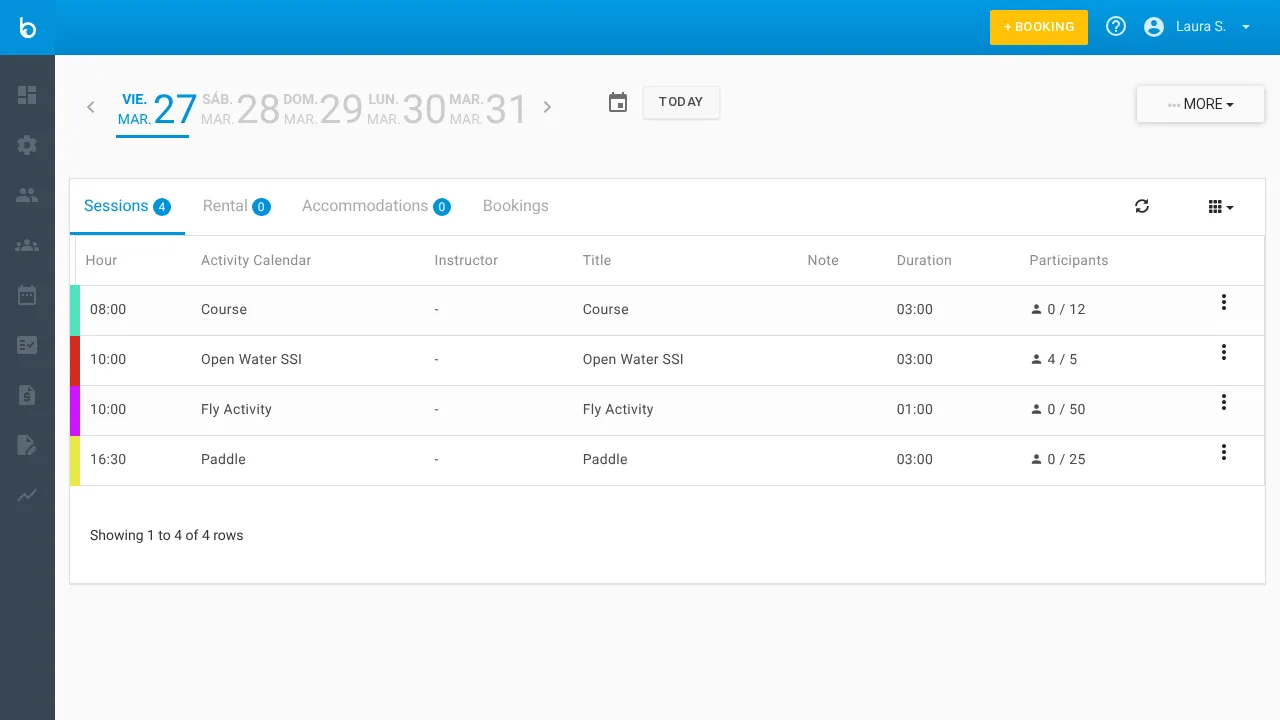
Section titled “1. Go to Planning > Activities”Click Planning in the left sidebar. Make sure the Activities tab is selected. You’ll see the weekly schedule with all activity calendars.
2. Click ”+ SESSION”
Section titled “2. Click ”+ SESSION””Click the + SESSION button in the toolbar. The session creation modal opens.
3. Fill in the session basics
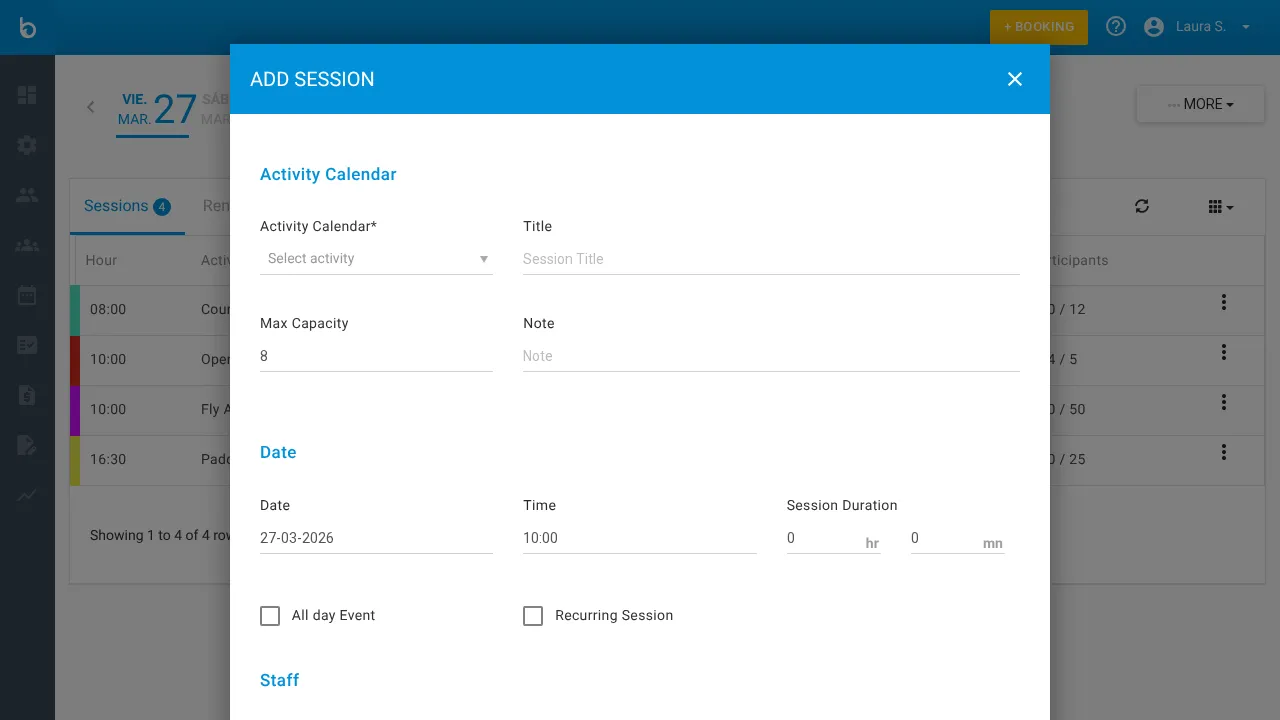
Section titled “3. Fill in the session basics”Before enabling recurrence, set the basic session info:
| Field | Value | Notes |
|---|---|---|
| Activity Calendar * | Select from dropdown | Required. Which calendar this session belongs to. |
| Title | e.g. “Morning Surf” | Optional. Session title. |
| Max Capacity | e.g. 8 | Maximum participants per session. |
| Note | Free text | Optional. Internal notes. |
| Time | e.g. 10:00 | Session start time. |
| Session duration | e.g. 2 hr 0 mn | Length. If left at 0, uses the calendar default. |
4. Check “Recurring event”
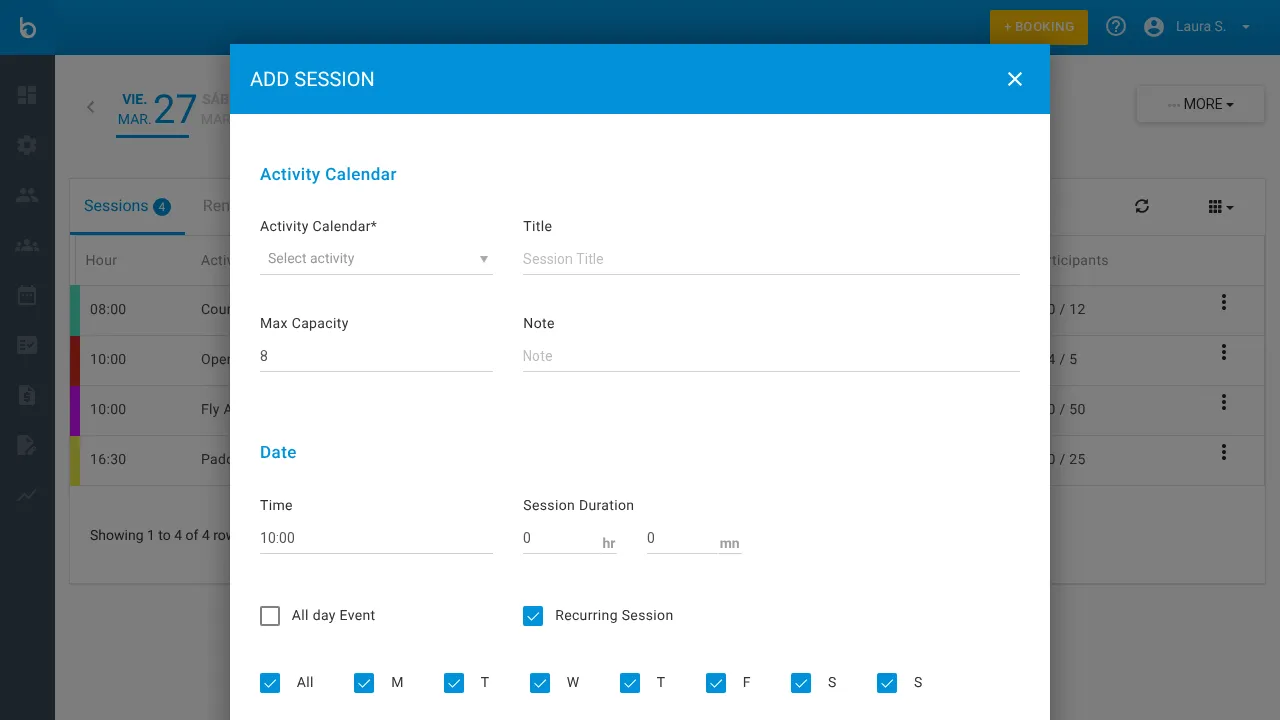
Section titled “4. Check “Recurring event””Check the Recurring event checkbox. The form transforms:
- The single Date field disappears
- Day-of-week checkboxes appear (Mon through Sun + All)
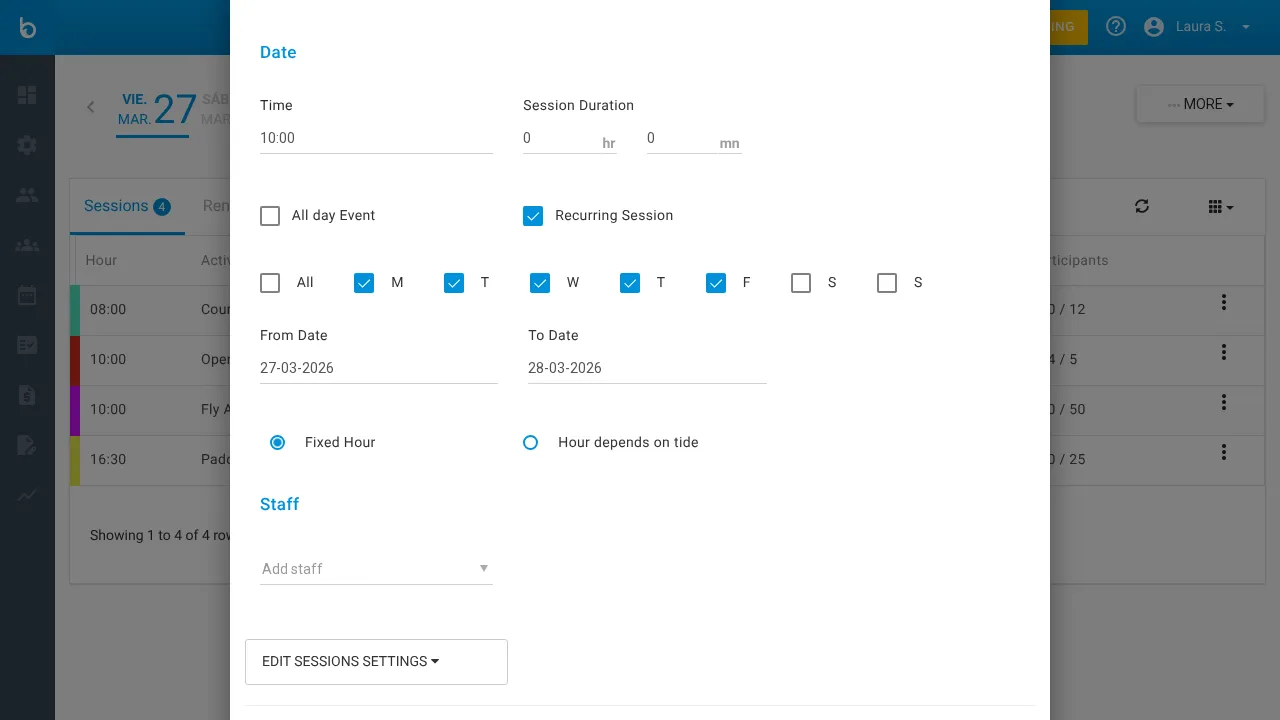
- Date range fields appear (From / To)
- Time mode radio buttons appear (Fixed Time / Tide-Dependent)
5. Select the days of the week
Section titled “5. Select the days of the week”A row of checkboxes appears: All, Mon, Tue, Wed, Thu, Fri, Sat, Sun. All are checked by default.
- Click All to toggle every day on or off
- Uncheck individual days to exclude them
Example: For weekday-only sessions, uncheck Sat and Sun.
Watch out: Clicking All when it’s already checked will uncheck every day. You’ll need to re-check them individually.
6. Set the date range
Section titled “6. Set the date range”| Field | Value | Notes |
|---|---|---|
| From | Select date | Start date for the recurring sessions. |
| To | Select date | End date. One session is created for each selected day within this range. |
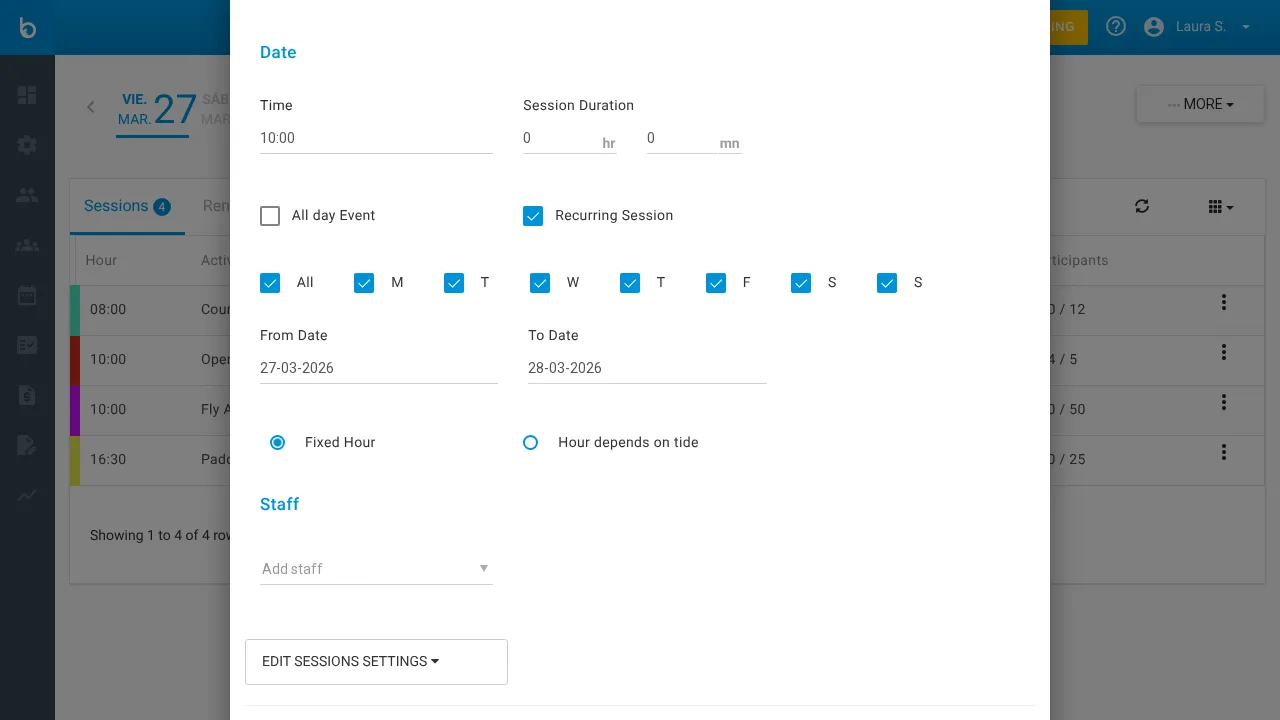
Example: From March 1 to June 30, with Mon/Wed/Fri checked = ~52 sessions created automatically.
7. Choose the time mode
Section titled “7. Choose the time mode”Two options:
Fixed Time (default) — Sessions always start at the time you set in step 3. Use this for most activities.
Tide-Dependent Time — For activities where timing depends on tides (surf, kayak, coastal tours). When selected, a Tide Settings section appears:
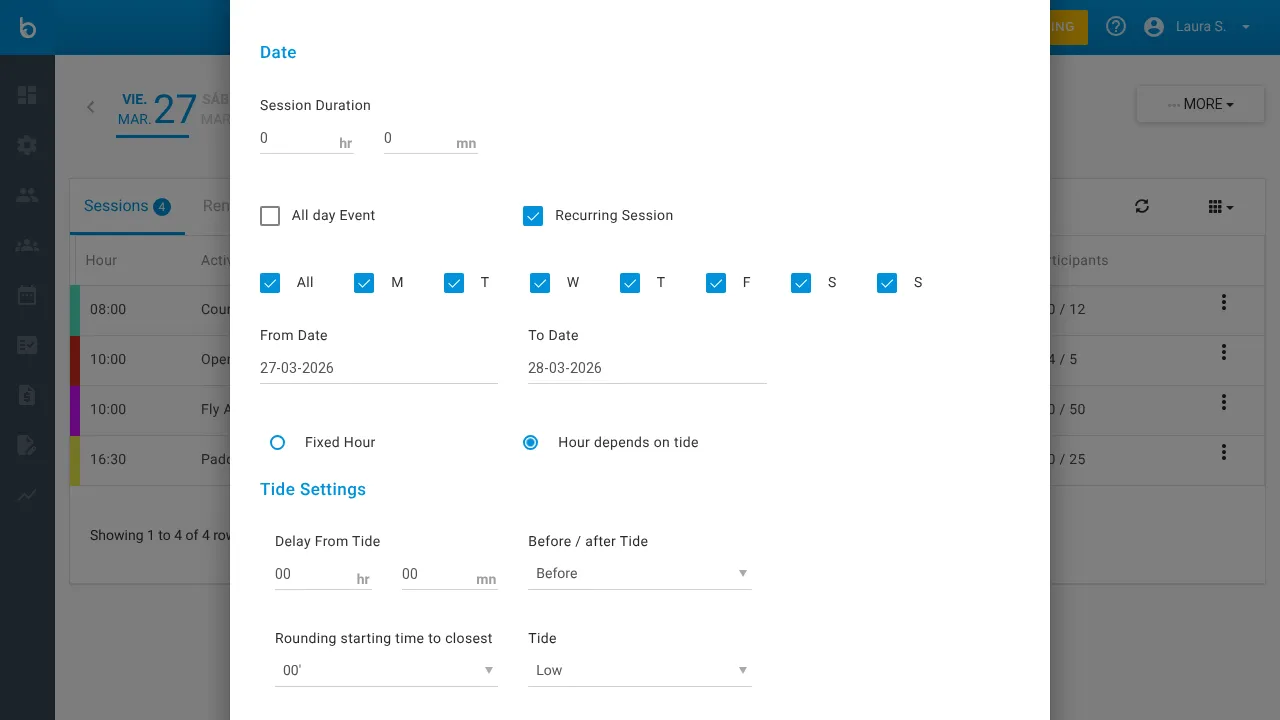
| Field | Value | Notes |
|---|---|---|
| Offset from tide | e.g. 1 hr 30 mn | How far before/after the tide event. |
| Before / After tide | Before or After | Whether the session starts before or after the tide. |
| Round start time | 00’, 15’, 30’ | Round the calculated time to the nearest interval. |
| Tide | Low or High | Which tide event to reference. |
Watch out: Tide-dependent scheduling requires tide data configured for your location in organization settings.
8. (Optional) Assign staff
Section titled “8. (Optional) Assign staff”In the Staff section, use the dropdown to assign an instructor to all recurring sessions.
9. (Optional) Edit session settings
Section titled “9. (Optional) Edit session settings”Click Edit session settings to expand advanced options:
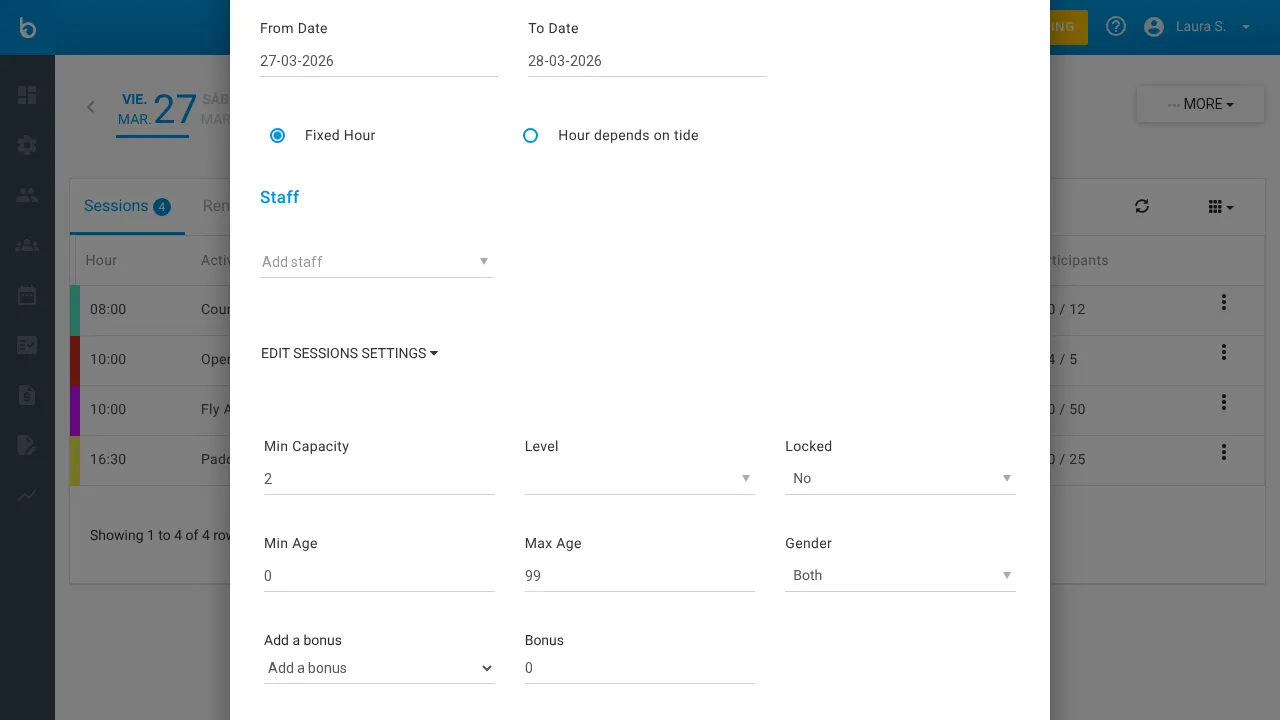
| Field | Value | Notes |
|---|---|---|
| Min Capacity | e.g. 2 | Minimum participants for the session to run. |
| Level | Beginner / Intermediate / Advanced | Skill level filter. |
| Locked | Yes / No | Lock from online booking changes. |
| Min Age / Max Age | e.g. 0 / 99 | Age restrictions. |
| Gender | Both / Male / Female | Gender restriction. |
Public access settings control visibility in the online booking widget:
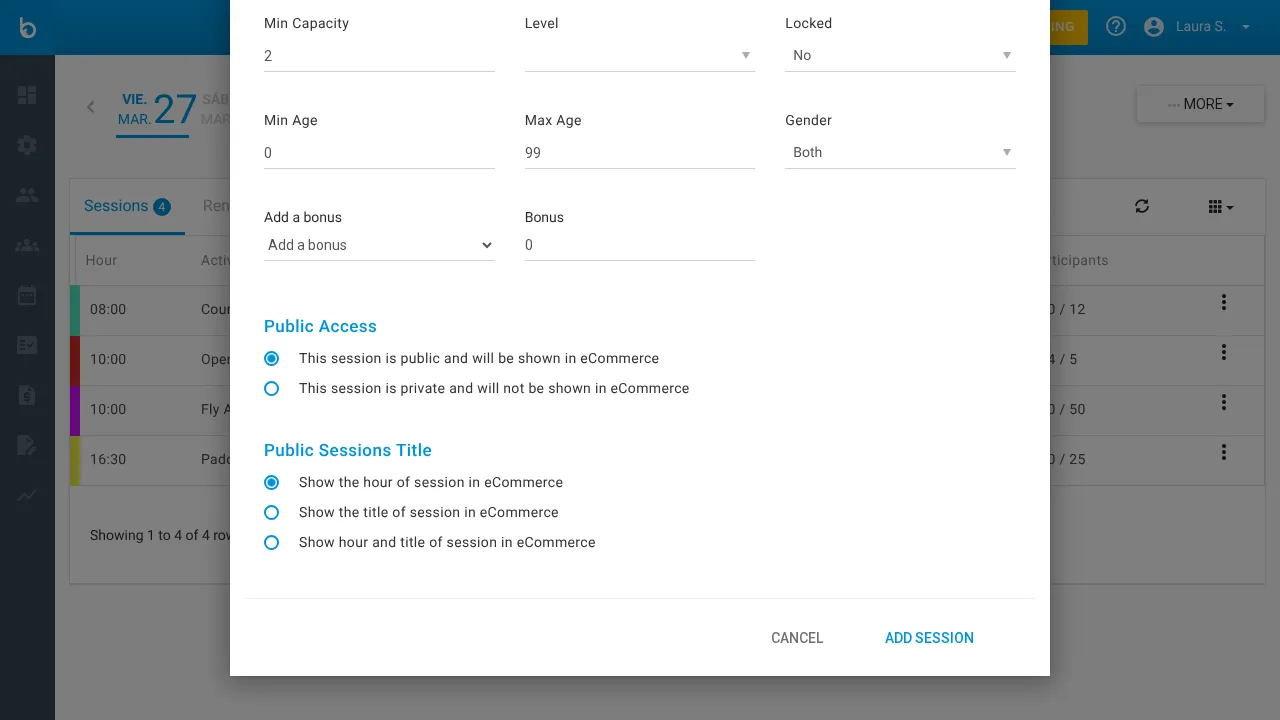
- Public session — visible in eCommerce
- Private session — only visible internally
10. Save
Section titled “10. Save”Click Add Session to create all recurring sessions. Bloowatch generates one session for each selected day within the date range.
What should happen next
Section titled “What should happen next”- Sessions appear on the Activity Agenda for every selected day between the start and end dates
- Each session inherits the same time, duration, capacity, staff, and settings
- You can edit or delete individual sessions without affecting the others
- Customers can start booking these sessions through the POS or online widget
Common mistakes
Section titled “Common mistakes”| Mistake | Why it happens | Fix |
|---|---|---|
| ”Too many sessions created” | Date range is too wide or too many days checked | Delete the batch and recreate with a narrower range or fewer days |
| ”Sessions missing on some days” | Those days weren’t checked in the day-of-week selection | Check the recurring pattern and ensure the right days are selected |
| ”Tide times are wrong” | Tide data not configured for your location | Go to organization settings and configure tide data |
| ”Session count doesn’t match course product” | Recurrence generated more/fewer sessions than the product expects | Align the date range and day selection to produce the exact session count |
