Open and Close POS Register
Quick path: POS → Open register → Enter float → Record sales → Close register
What this helps you do
Section titled “What this helps you do”Every cash-handling day starts and ends with the register. Opening it sets your starting cash amount so Bloowatch can track everything from that point. During the day you record pay-ins and pay-outs. At the end of the day you close the register, count your physical cash, and let the system compare expected vs. actual. You get a shift report you can export for accounting.
Before you start
Section titled “Before you start”- You have the Manager or Admin role (register operations require elevated permissions)
- At least one POS payment method is configured (Settings > Payment Methods)
- You know the opening float amount (the cash you’re putting in the drawer)
1. Open the register
Section titled “1. Open the register”Click the dropdown arrow next to the yellow + BOOKING button in the top-right header. Select Open Register.
2. Enter the opening float
Section titled “2. Enter the opening float”Type the amount of cash you’re placing in the drawer. This is your starting balance for the shift.
Click Open to start the shift.
Watch out: The opening float is not a sale — it’s just the cash you start with. If you enter the wrong amount, the end-of-day reconciliation will show a discrepancy.
3. Record pay-ins and pay-outs during the day
Section titled “3. Record pay-ins and pay-outs during the day”Whenever you add cash to the drawer (e.g., change from the bank) or remove it (e.g., an expense payment), record it.
Click the dropdown arrow next to + BOOKING and select Pay In / Pay Out.
| Field | Value | Notes |
|---|---|---|
| Direction | Pay In or Pay Out | Pay In = cash entering the drawer. Pay Out = cash leaving. |
| Amount | e.g. 50.00 | The amount being moved. |
| Reason | e.g. “Bank change” | Optional but recommended for the audit trail. |
Watch out: Getting the direction wrong (Pay In vs. Pay Out) will double the discrepancy at closing. If you move EUR 100 out but record it as Pay In, you’ll be EUR 200 short on paper.
4. Print X report (mid-day check)
Section titled “4. Print X report (mid-day check)”Need a snapshot without closing the register? Print an X report. This gives you current totals — cash, card, and other payment methods — without ending the shift.
Click the dropdown arrow next to + BOOKING and select Print X Report.
The X report shows:
- Total sales by payment method
- Pay-in / pay-out movements
- Current expected cash in drawer
This is useful for shift handovers or mid-day audits.
5. Close the register
Section titled “5. Close the register”At the end of the day, click the dropdown arrow next to + BOOKING and select Close Register.
6. Count and enter physical cash
Section titled “6. Count and enter physical cash”The system shows the expected cash based on all transactions, pay-ins, and pay-outs. Count the physical cash in your drawer and enter the actual amount.
| Field | Description |
|---|---|
| Expected cash | Calculated by the system (opening float + cash sales + pay-ins - pay-outs) |
| Actual cash | What you physically counted in the drawer |
| Difference | Auto-calculated. Green = matches. Red = discrepancy. |
Click Close to finalize the shift.
7. Review the Z report (end-of-day)
Section titled “7. Review the Z report (end-of-day)”After closing, the system generates a Z report — your official end-of-day closure document. It includes:
- Opening float
- All sales broken down by payment method (cash, card, etc.)
- All pay-in / pay-out movements
- Expected vs. actual cash
- Discrepancy (if any)
- Shift totals
You can print or export this report for your accounting records.
8. Review the daily summary in Reports
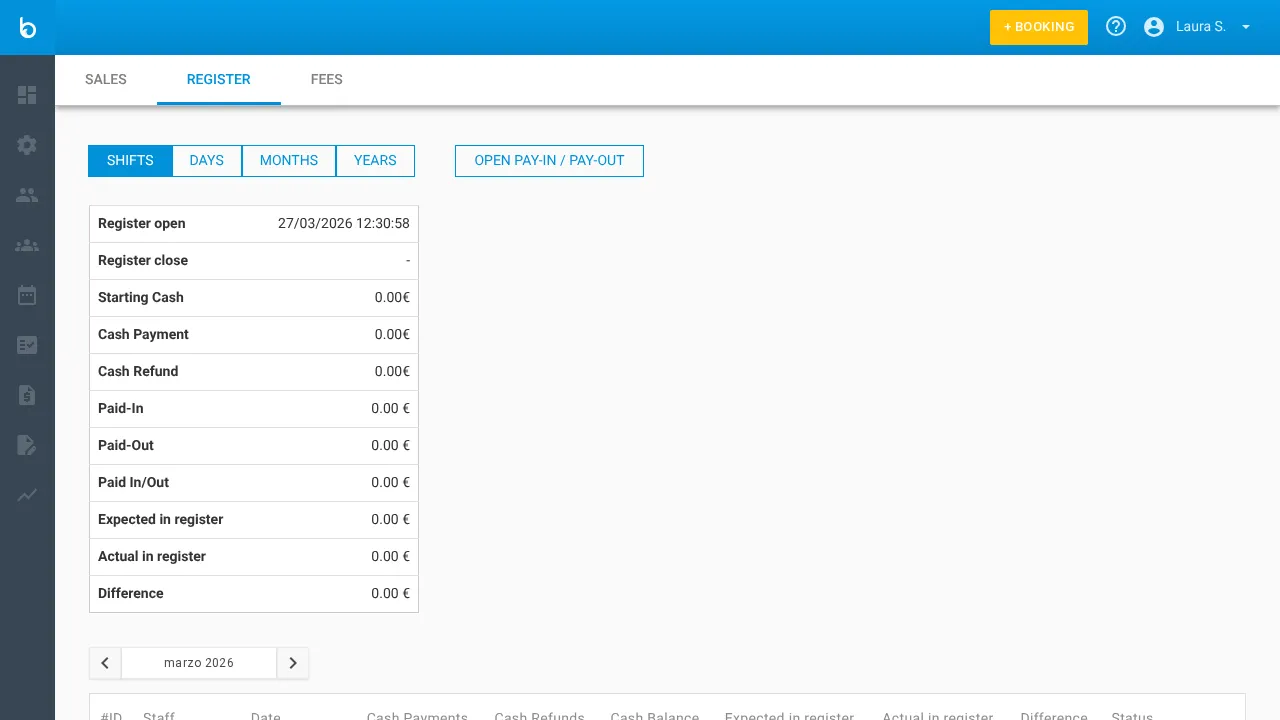
Section titled “8. Review the daily summary in Reports”Go to Reports in the left sidebar and click the Register tab. This shows:
- POS cash drawer activity across all shifts
- Due balance
- Pay-in / pay-out history with date, amount, direction, and staff member
What should happen next
Section titled “What should happen next”- The register status returns to “closed” — no more cash transactions can be recorded until a new shift is opened
- The Z report is saved and can be reprinted from Reports > Register
- If you have Multi-POS (GOLD plan), each terminal has its own independent register and shift
- Next day: open a new register with a fresh opening float
Common mistakes
Section titled “Common mistakes”| Mistake | Why it happens | Fix |
|---|---|---|
| ”Can’t find Pay In / Pay Out” | Register hasn’t been opened yet | Open the register first — pay-in/out only appears after a shift starts |
| ”Cash doesn’t match the report” | Unrecorded pay-in or pay-out | Check the pay-in/pay-out history in Reports > Register |
| ”Wrong direction on pay-in/out” | Confused Pay In with Pay Out | You can’t undo a recorded movement. Record a correcting movement in the opposite direction for the same amount |
| ”Opening float was wrong” | Typo when opening the register | Close the shift and open a new one with the correct amount |
If it still doesn’t work
Section titled “If it still doesn’t work”- Check Reports > Register to review the full history of cash movements for the current shift
- Verify that your user role has permission to open/close the register
- If the register appears stuck (can’t open or close), try refreshing the browser
- Contact Bloowatch Support via the chat widget — have your shift date and the expected vs. actual amounts ready
