End-of-Day Reports & Exports
Quick path: Reports → Daily summary → Export bookings → Export payments → Close register
What this helps you do
Section titled “What this helps you do”At the end of a busy day, you need to know how much money came in, what was sold, and whether the cash drawer matches. Bloowatch gives you a Reports section with sales summaries, export tools for bookings and payments, and a POS register closure process (the Z report) that reconciles your cash.
Before you start
Section titled “Before you start”- You have Manager or Admin access (staff with restricted roles may not see Reports)
- Bookings and payments have been recorded during the day
- If you plan to close the register, a POS shift is open (Open Register was used at the start of the day)
1. Open the Reports section
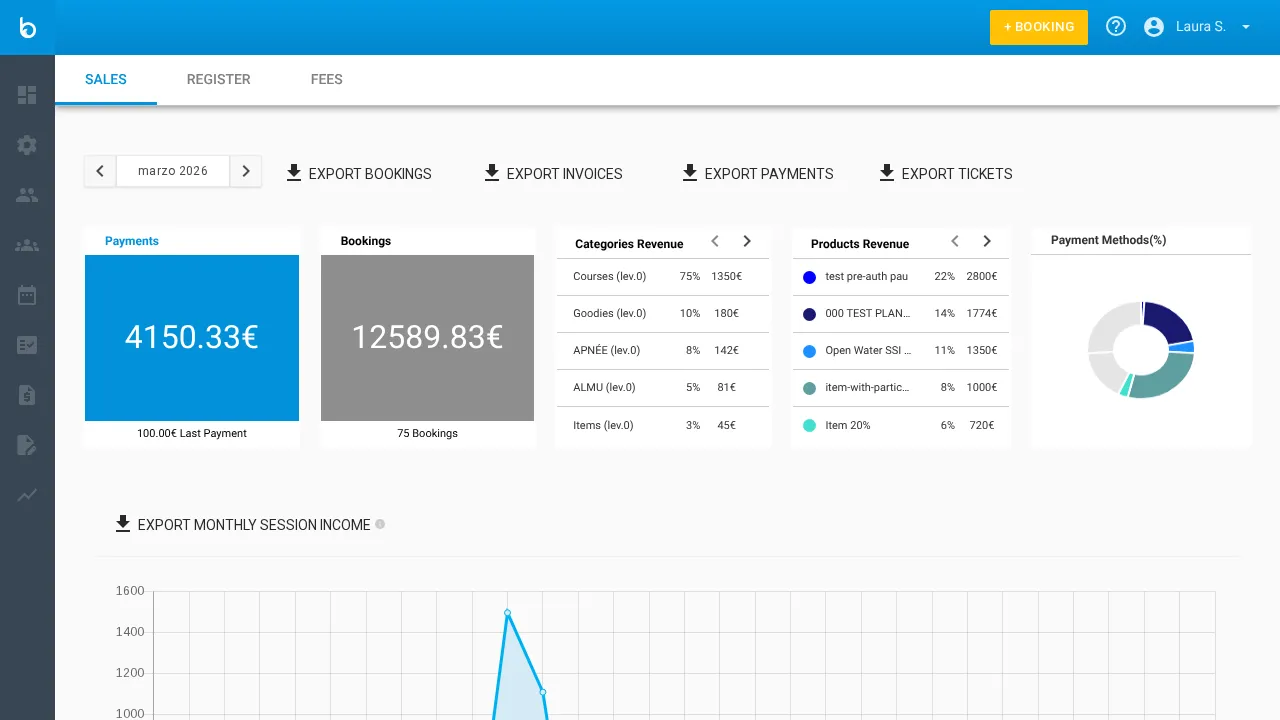
Section titled “1. Open the Reports section”Click Reports in the left sidebar. The Sales tab opens by default, showing revenue charts and summary tiles for the selected period.
2. View the daily revenue summary
Section titled “2. View the daily revenue summary”Use the date filter at the top to select today’s date (or any date range you want to review). The dashboard shows:
- Total revenue for the period
- Breakdown by product and payment method
- Charts showing trends over time
Click the Details tab for a tabular breakdown of individual transactions.
3. Export bookings
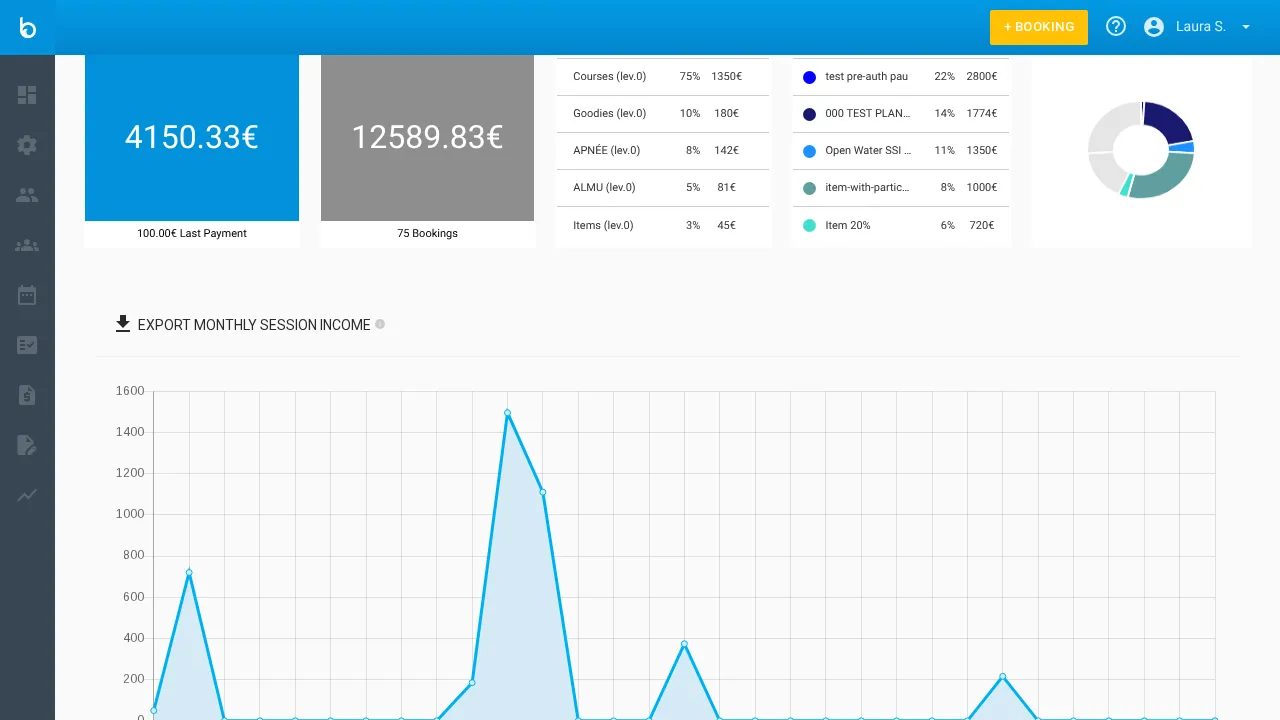
Section titled “3. Export bookings”Scroll to the bottom of the Sales view. Click Export Bookings.
Select the date range and any filters (product, status). The export generates a spreadsheet file with all booking records for that period — one row per booking with client name, product, date, amount, and status.
Watch out: The export buttons are at the bottom of the Sales view, not the top. Scroll down past the charts to find them.
4. Export payments
Section titled “4. Export payments”Still in Reports > Sales, click Export Payments.
This generates a detailed payment report — every individual payment transaction with method (cash, card, transfer), amount, date, and the linked booking. This is the file your accountant needs for reconciliation.
Other available exports from this view:
| Export button | What it contains | Best for |
|---|---|---|
| Export Bookings | All bookings with client, product, dates, amounts | Sales overview, marketing analysis |
| Export Invoices | Invoice records with numbers, amounts, tax | Tax reporting, accounting ledger |
| Export Payments | Individual payment transactions | Bank reconciliation, cash tracking |
| Export Tickets | POS ticket records | POS audit trail |
5. Export payments from the Sales > Payments tab
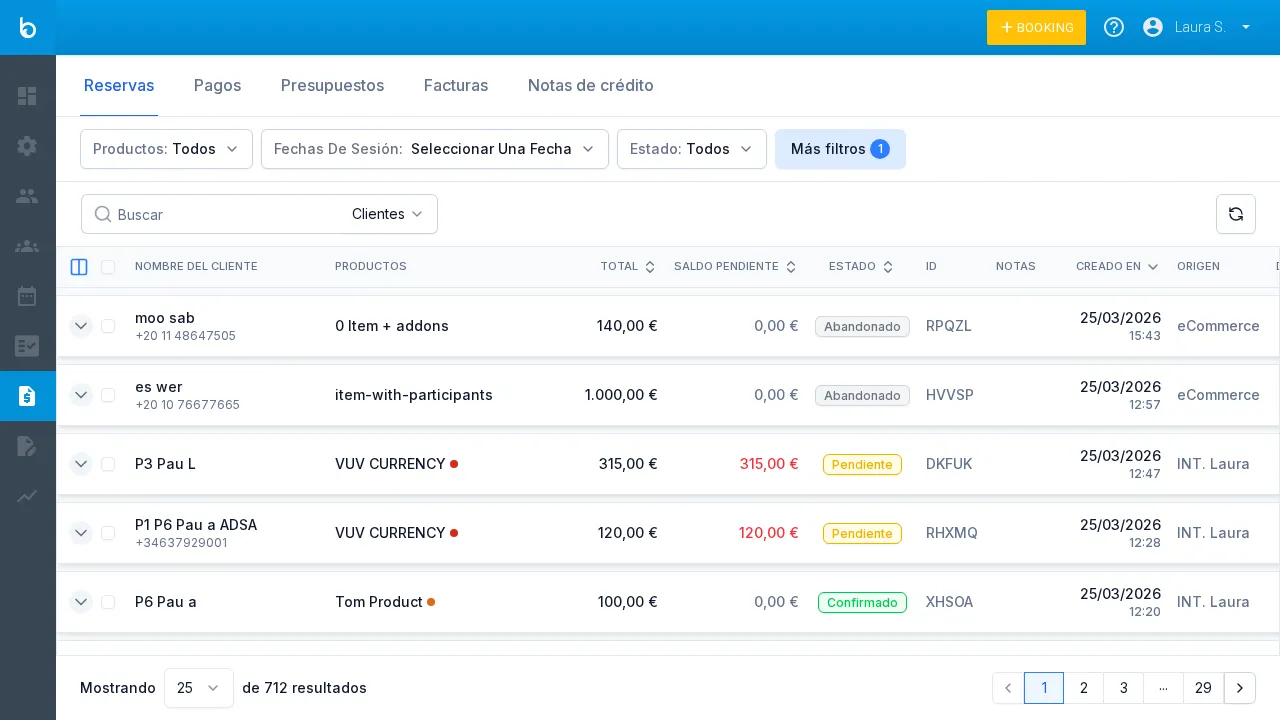
Section titled “5. Export payments from the Sales > Payments tab”For a quick payment-only view, go to Sales > Payments in the left sidebar. This dedicated payment list has two export actions at the top:
| Action | What it does |
|---|---|
| Export Table | Raw data rows (CSV/spreadsheet) for analysis |
| Export Report | Formatted summary for accounting or printing |
6. Close the POS register (Z report)
Section titled “6. Close the POS register (Z report)”This is your end-of-day cash closure. Click the dropdown arrow next to the yellow + BOOKING button in the top-right header, then select Close Register.
- Count the physical cash in your drawer
- Enter the counted amount
- Bloowatch compares your count against the expected cash (based on all cash transactions and pay-in/pay-out movements during the shift)
- Review the shift summary — total sales, payment method breakdown, any discrepancies
- Confirm the closure
Watch out: You can only close the register if one was opened at the start of the shift. If you see no “Close Register” option, it means no register was opened that day.
7. Review the register report
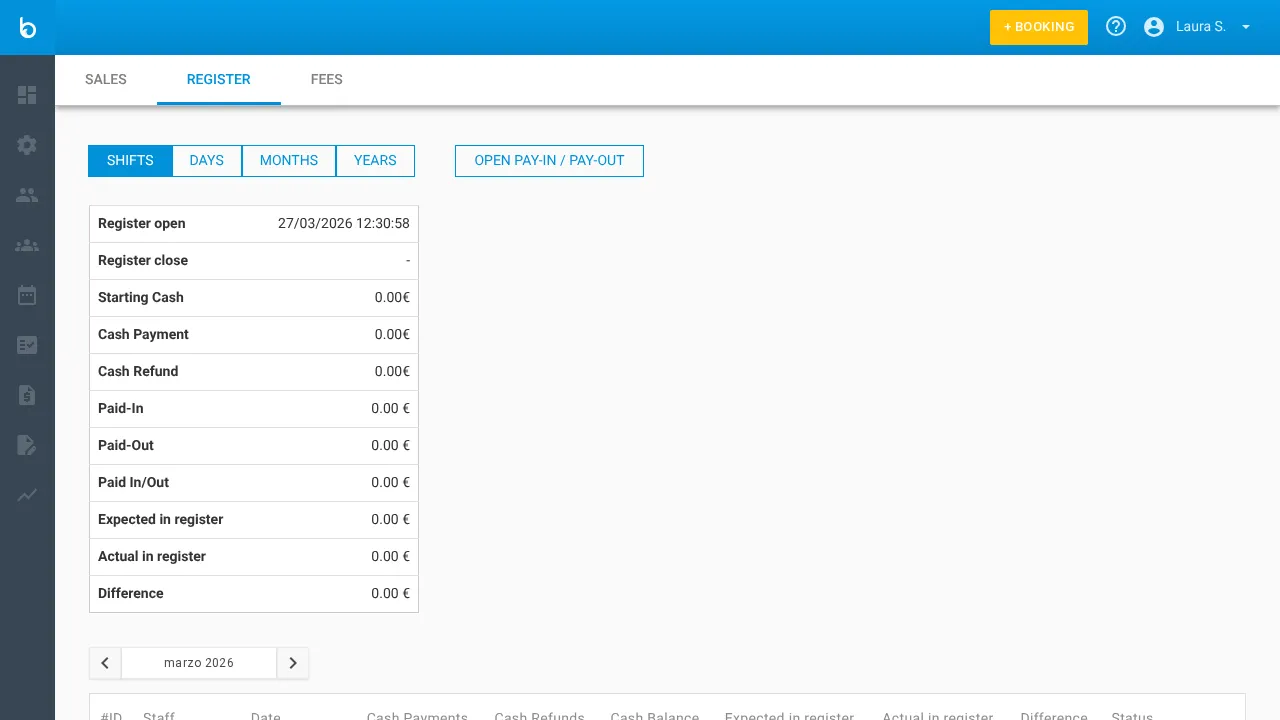
Section titled “7. Review the register report”After closing, go to Reports > Register to see the full POS shift history. This tab shows:
- Due balance overview
- Pay-in/Pay-out history (date, amount, direction, staff member)
- Shift totals and discrepancies
What should happen next
Section titled “What should happen next”- Your sales data appears in the Reports dashboard for the selected date
- Exported files download to your device (CSV or spreadsheet format)
- The register shift is closed and the cash count is logged
- The next day starts fresh — open a new register when the first sale happens
Common mistakes
Section titled “Common mistakes”| Mistake | Why it happens | Fix |
|---|---|---|
| Can’t find export buttons | They’re at the bottom of the Sales view | Scroll past the charts to see Export Bookings, Invoices, Payments, Tickets |
| Cash doesn’t match the register report | Unrecorded pay-in/pay-out movements | Check Reports > Register for missing cash movements. Record them before closing. |
| ”Close Register” option is missing | No register was opened that day | Open Register first (dropdown next to + BOOKING). For future days, open at shift start. |
| Export file is empty | Date filter is too narrow or wrong product filter | Widen the date range and remove product filters to verify data exists |
If it still doesn’t work
Section titled “If it still doesn’t work”If your exports are incomplete or the register report shows unexpected numbers:
- Check Reports > Register for any unrecorded pay-in/pay-out transactions
- Verify the date range matches the period you’re looking for
- Ask another manager to confirm they didn’t close the register already
- Contact Bloowatch support with your organization name and the date in question
