Charge a Booking
Quick path: Sales → Bookings → Open booking → Payments → Add payment → Confirm
What this helps you do
Section titled “What this helps you do”When a customer pays for their booking — whether at the front desk, over the phone, or via bank transfer — you need to record that payment in Bloowatch. This keeps your balance tracking accurate and automatically confirms the booking once fully paid.
You can record a single full payment or split it into multiple partial payments (deposits). Each payment is logged in the booking’s payment history with its method, amount, and timestamp.
Before you start
Section titled “Before you start”- A Booking exists with a pending balance (see Create a Manual Booking)
- If paying by cash, the Cash Register must be open (Bloowatch will prompt you to open it if it’s closed)
- If recording an online payment, a Payment Gateway is configured in Settings
1. Open the booking
Section titled “1. Open the booking”Go to Sales > Bookings and find the booking you want to charge. Click on the client name to open the booking detail.
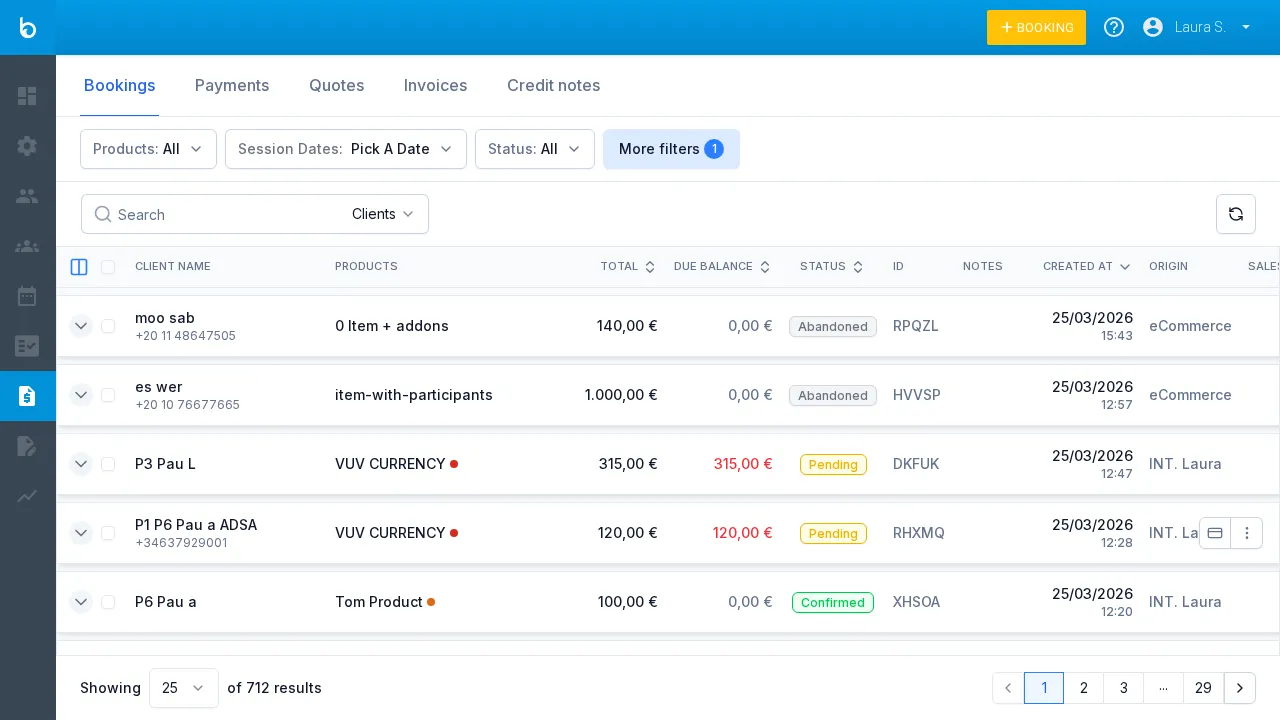
Watch out: Look for bookings with a Pending Balance greater than zero. Fully paid bookings show 0.00 in the Pending Balance column.
2. Go to the Payments tab
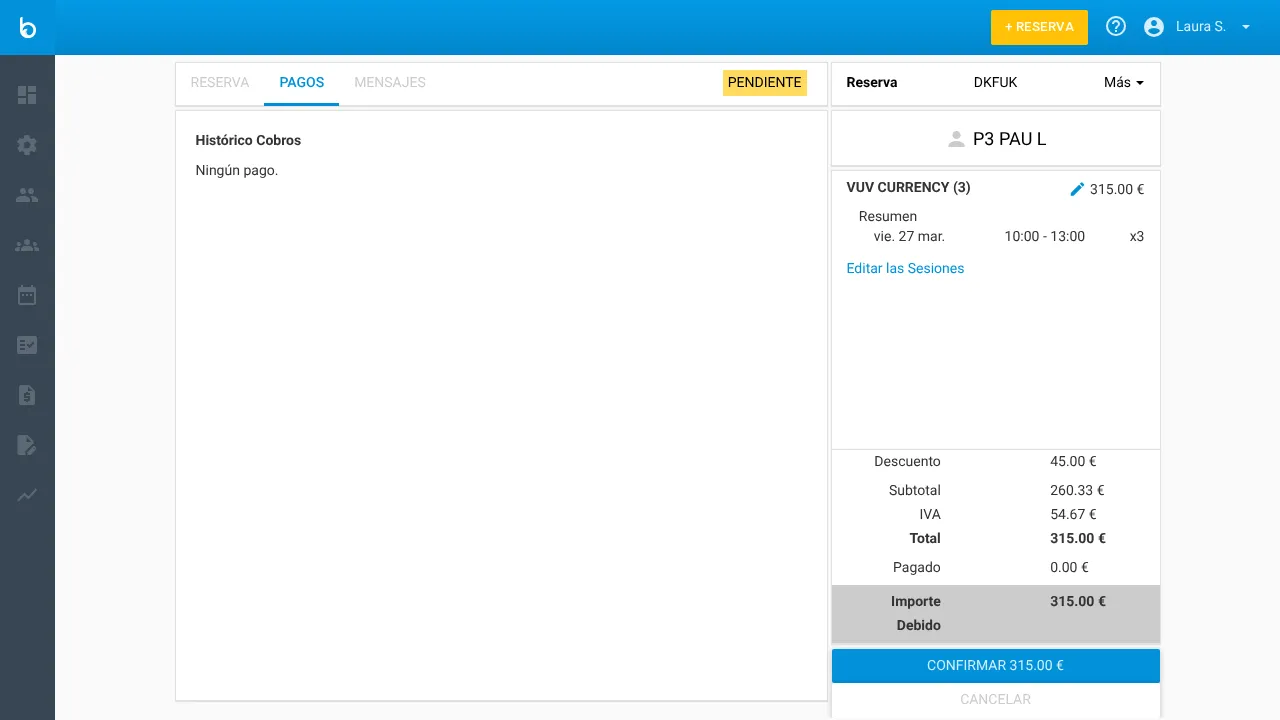
Section titled “2. Go to the Payments tab”Click the Payments tab at the top of the booking detail page. You’ll see:
- Payment History (left) — a log of all payments recorded for this booking
- Booking Summary (right) — total, amount paid, and balance due
3. Click the Confirm button
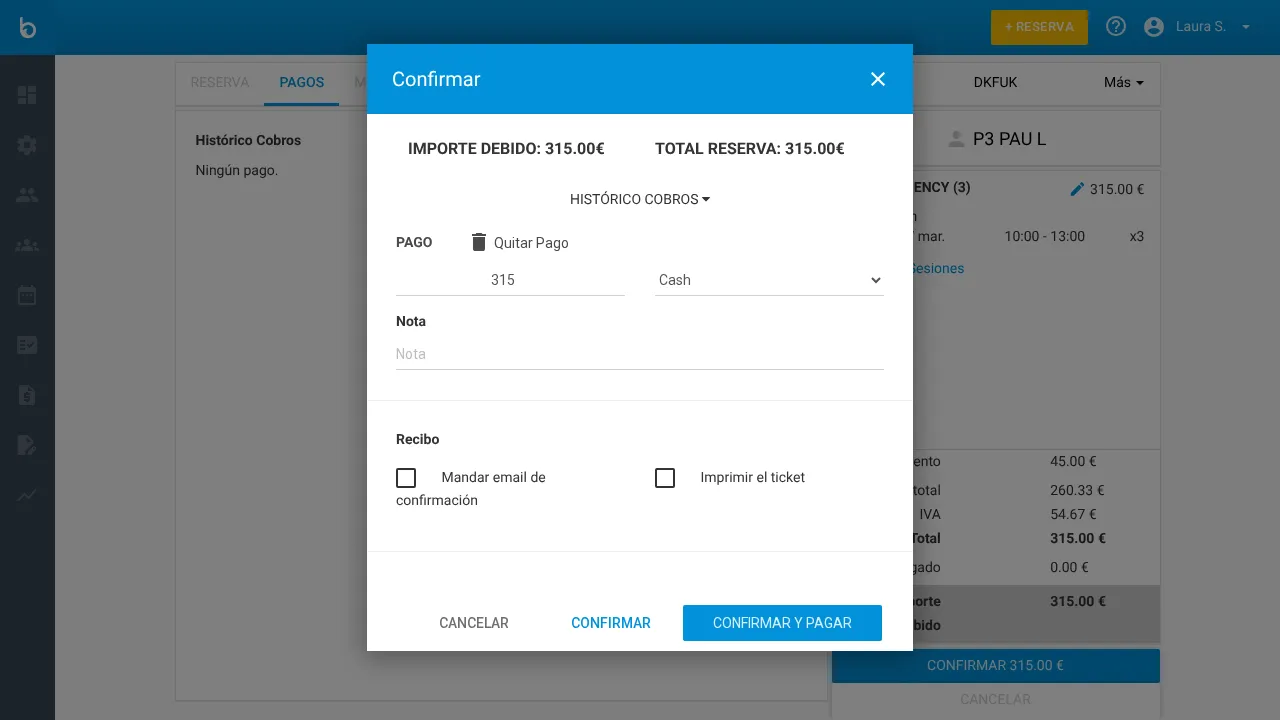
Section titled “3. Click the Confirm button”Click the Confirm button (blue button at the bottom right showing the pending amount). This opens the payment confirmation dialog.
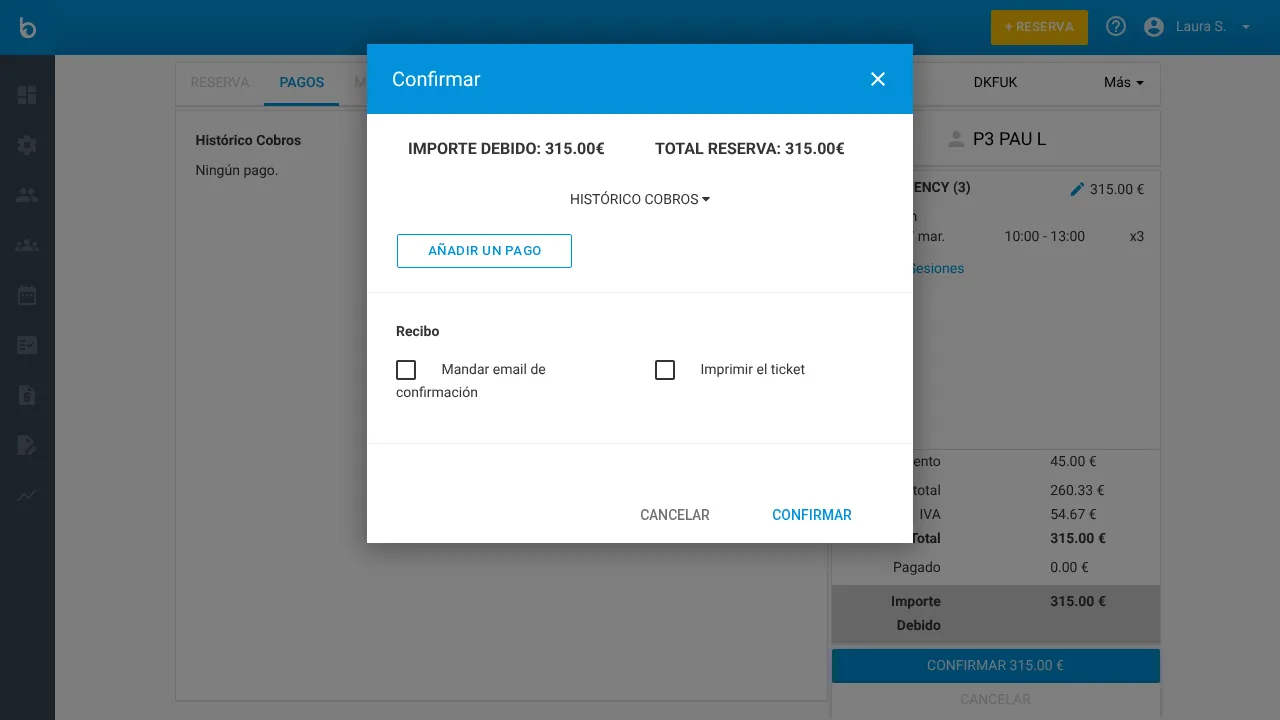
The dialog shows:
| Field | Description |
|---|---|
| Amount Due | Outstanding balance on this booking |
| Booking Total | Total value of the booking |
| Payment History | Expandable list of previous payments |
| Add a Payment | Button to add a new payment line |
| Receipt | Options to send a confirmation email or print a ticket |
4. Click “Add a Payment”
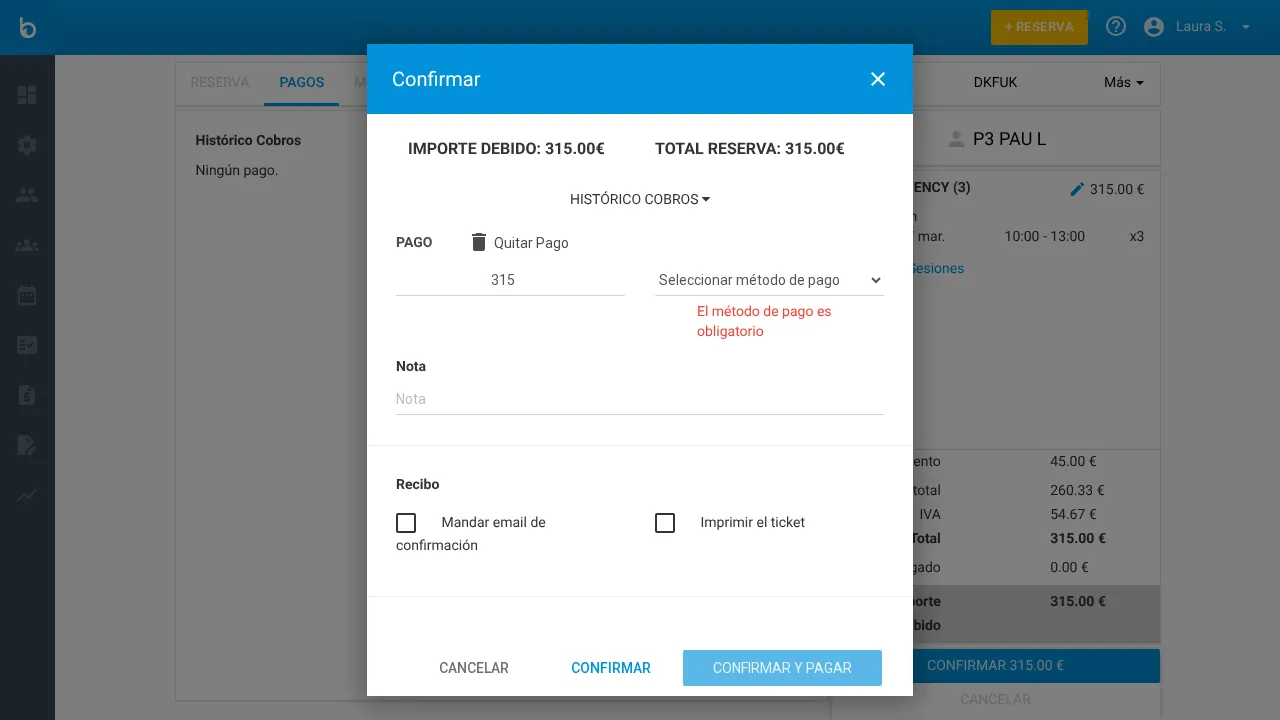
Section titled “4. Click “Add a Payment””Click the Add a Payment button. A payment line appears with:
- An amount field (pre-filled with the full pending amount)
- A payment method dropdown
5. Choose the payment method
Section titled “5. Choose the payment method”Select a payment method from the dropdown:
| Method | When to use |
|---|---|
| Cash | Customer pays at the front desk. Requires the cash register to be open. |
| Credit card | Card payment processed outside Bloowatch (manual terminal). |
| Payment gateway | Online card payment via your configured gateway (Stripe, Redsys, etc.). |
| Check | Customer pays by bank check. |
| E-transaction | Electronic bank transfer. |
| OTA Payment | Payment received through an online travel agency (Viator, GetYourGuide). |
| ANCV | French vacation vouchers (ANCV Cheques Vacances). |
6. Adjust the amount (optional)
Section titled “6. Adjust the amount (optional)”The amount defaults to the full pending balance. To record a partial payment (deposit):
- Click the amount field
- Type the partial amount (e.g., 100 instead of 315)
- The remaining balance will be shown the next time you open this dialog
Watch out: You can add multiple payment lines by clicking Add a Payment again. This lets you split a payment across methods — for example, part cash and part card.
7. Choose receipt options (optional)
Section titled “7. Choose receipt options (optional)”Under Receipt, you can check:
- Send confirmation email — sends a payment confirmation to the customer’s email
- Print the ticket — prints a POS receipt (requires a connected printer)
8. Confirm the payment
Section titled “8. Confirm the payment”Click Confirm and Pay to record the payment and update the booking status, or click Confirm to confirm the booking without recording a payment.
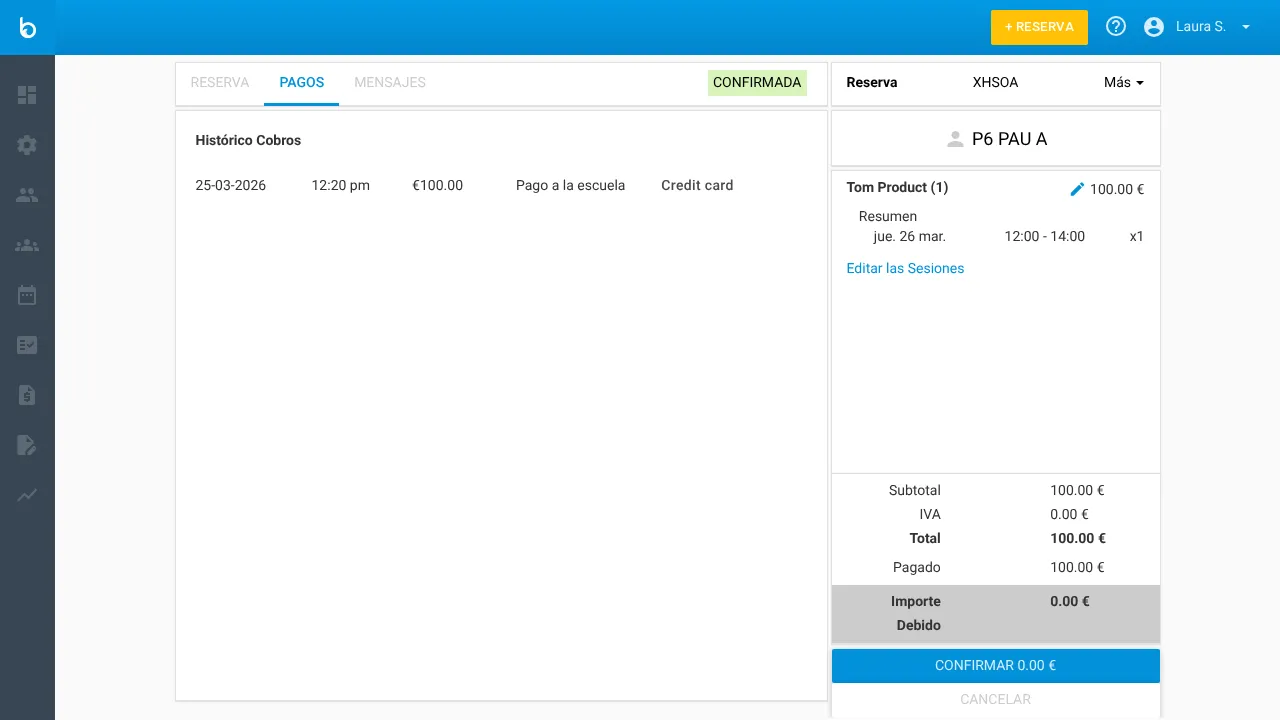
- If the full balance is paid, the booking status changes to Confirmed
- If it’s a partial payment, the booking stays Pending with the remaining balance shown
What should happen next
Section titled “What should happen next”- The payment appears in the Payment History section of the Payments tab
- The Amount Due updates to reflect the remaining balance (or 0.00 if fully paid)
- If fully paid, the booking status badge changes from Pending to Confirmed
- The payment is recorded in Sales > Payments for your accounting records
- If you checked “Send confirmation email,” the customer receives a receipt
Common mistakes
Section titled “Common mistakes”| Mistake | Why it happens | Fix |
|---|---|---|
| ”Cash register is closed” prompt appears | You selected Cash as the payment method but haven’t opened the register today | Click Open the Register in the prompt, set the opening float, and try again |
| Payment method dropdown shows an error | No payment method was selected | Select a method from the dropdown before clicking Confirm and Pay |
| Booking stays Pending after payment | A partial amount was recorded, not the full balance | Open the Payments tab again and add another payment for the remaining amount |
| Wrong amount recorded | Typed the wrong number in the amount field | You’ll need to delete the payment from the Payment History and re-record it with the correct amount |
If it still doesn’t work
Section titled “If it still doesn’t work”- Check that your user role has permission to record payments
- Verify the booking isn’t cancelled — cancelled bookings cannot receive payments
- If the payment gateway option doesn’t appear, confirm that a gateway is configured in Settings > Payment Gateways
- Contact Bloowatch Support via the chat widget
