Configure Tax/VAT for Your Country
Quick path: Settings → General Settings → Create tax rate → Assign to products → Save
What this helps you do
Section titled “What this helps you do”Every sale in Bloowatch needs a tax rate before it reaches an invoice. Tax configuration lets you create tax rates that match your country’s requirements (IVA in Spain, TVA in France, IVA in Portugal, VAT in Ireland, etc.) and assign them to your products. Once configured, Bloowatch automatically calculates the tax on every booking and includes it on invoices and receipts.
If you operate in a country with fiscal compliance requirements — such as TicketBAI in the Basque Country (Spain) or NF525 in France — the correct tax configuration is a prerequisite for those systems to work properly.
Before you start
Section titled “Before you start”- You have the Manager or Owner role (tax configuration requires elevated permissions)
- You know the tax rates applicable to your business (check with your accountant if unsure)
- If you sell different product types at different rates, have a list ready (e.g., lessons at 21%, rental at 21%, accommodation at 10%)
1. Go to Settings > General Settings
Section titled “1. Go to Settings > General Settings”Click on your username in the top-right corner and select Settings. Then click General Settings in the left sidebar. Tax rates are managed alongside payment methods in this section.
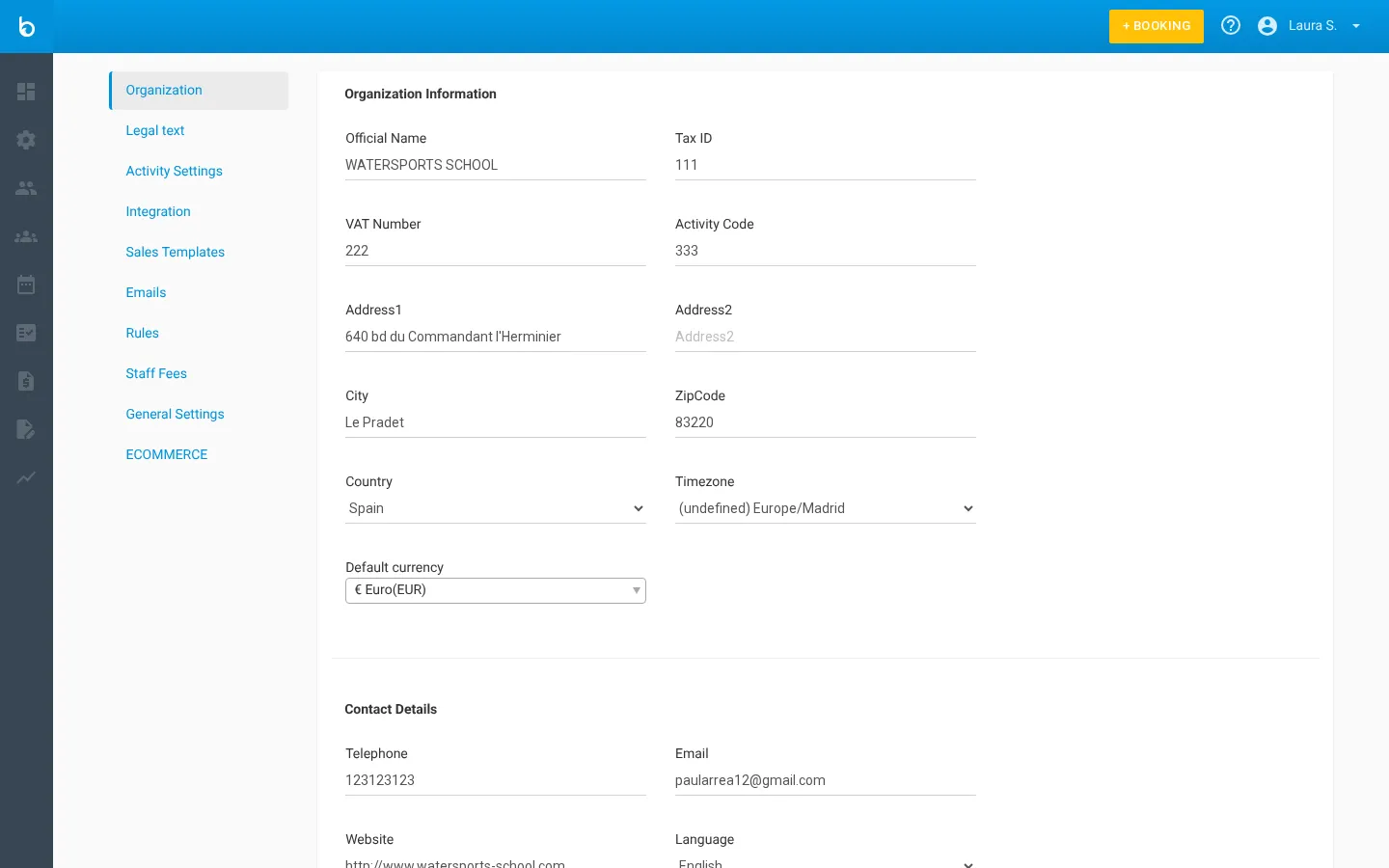
You will see a list of payment methods and tax-related configuration. If this is your first time, the list may contain default values.
2. Create a new tax rate
Section titled “2. Create a new tax rate”Click the + Add Tax Rate button (or + New depending on your version). A form appears with the following fields:
| Field | Description |
|---|---|
| Name * | A descriptive name for the tax rate (e.g., “IVA 21%”, “TVA 20%”, “VAT 23%“) |
| Percentage * | The tax percentage as a number (e.g., 21, 20, 10, 0) |
Tip: Use clear, descriptive names. If you have multiple rates, naming them with the percentage helps your team pick the right one when setting up products — for example, “IVA 21% - General” and “IVA 10% - Reduced”.
3. Save the tax rate
Section titled “3. Save the tax rate”Click Save (or Create) to add the tax rate. It now appears in the tax rates list and is available as an option when configuring product pricing.
Repeat steps 2-3 for each tax rate your business uses. Most businesses need at least two: a standard rate and a reduced rate.
4. Assign the tax rate to your products
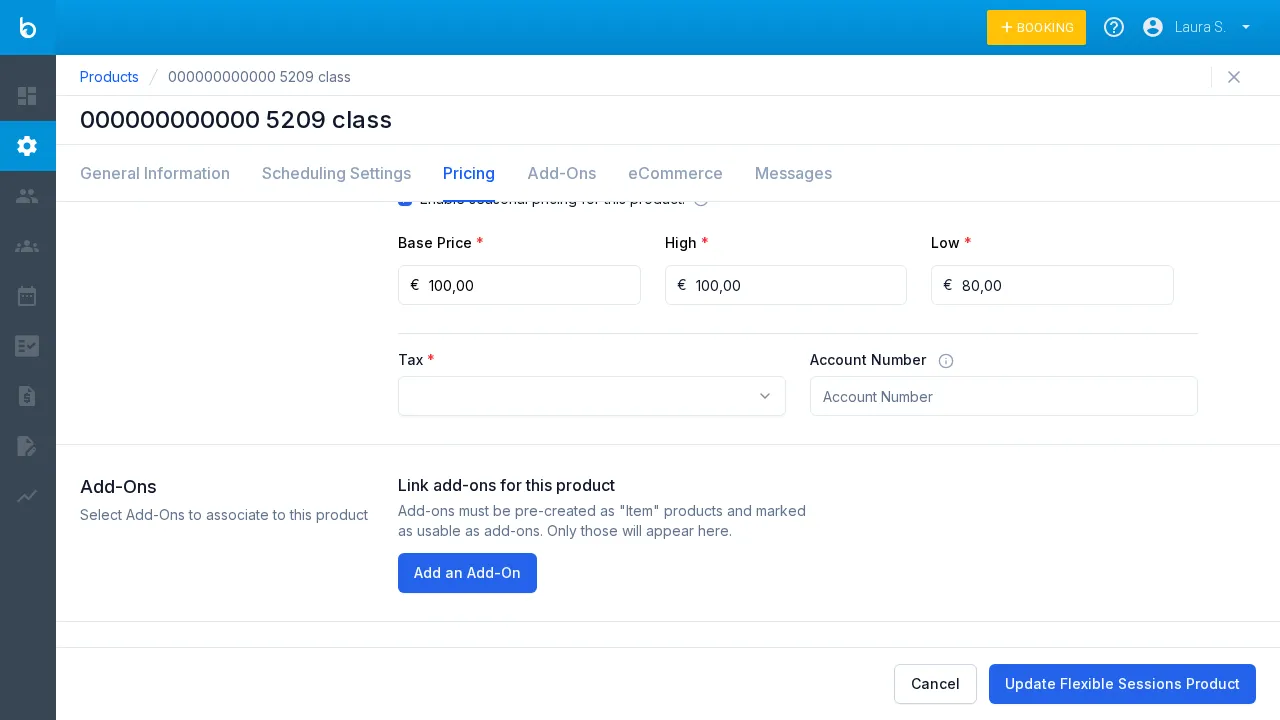
Section titled “4. Assign the tax rate to your products”Go to Resources > Products and open the product you want to configure. Click the Pricing tab.
At the bottom of the pricing form, you will see the Tax dropdown. Select the tax rate you just created.
| Field | Description |
|---|---|
| Tax * | Required. Select a tax rate from the dropdown. |
| Account number | Optional. Accounting reference number. |
Click Update product to save.
Watch out: Changing the tax rate on an existing product creates a new product version. Past bookings keep the old tax rate — only new bookings use the updated rate.
5. Verify tax on an invoice
Section titled “5. Verify tax on an invoice”Create a test booking (or open an existing one) and generate an invoice. Check that:
- The tax rate name appears on the invoice
- The tax amount is calculated correctly (base price x tax percentage)
- The total includes the tax
Country-specific guidance
Section titled “Country-specific guidance”Spain — IVA (Impuesto sobre el Valor Anadido)
Section titled “Spain — IVA (Impuesto sobre el Valor Anadido)”| Rate | Percentage | Applies to |
|---|---|---|
| General | 21% | Most services: lessons, courses, rentals |
| Reduced | 10% | Accommodation, transport, food service |
| Super-reduced | 4% | Essential goods (rarely applies to sports schools) |
| Exempt | 0% | Insurance, financial services |
Create each rate you use: e.g., “IVA 21% - General” and “IVA 10% - Alojamiento”.
Canary Islands (IGIC): If your school operates in the Canary Islands, you use IGIC instead of IVA. The general rate is 7%. Create your rates accordingly (e.g., “IGIC 7% - General”).
France — TVA (Taxe sur la Valeur Ajoutee)
Section titled “France — TVA (Taxe sur la Valeur Ajoutee)”| Rate | Percentage | Applies to |
|---|---|---|
| Normal | 20% | Most services: lessons, courses, equipment rentals |
| Reduced | 10% | Accommodation, food (on premises), transport |
| Reduced | 5.5% | Essential food products, specific cultural services |
| Super-reduced | 2.1% | Press, certain medicines (rarely applies) |
Create each rate you use: e.g., “TVA 20% - Normal” and “TVA 10% - Hebergement”.
DOM-TOM: Overseas departments may have different rates. Check with your accountant.
Portugal — IVA (Imposto sobre o Valor Acrescentado)
Section titled “Portugal — IVA (Imposto sobre o Valor Acrescentado)”| Rate | Percentage | Applies to |
|---|---|---|
| Normal | 23% | Most services: lessons, courses, rentals |
| Intermediate | 13% | Accommodation, food service, some cultural events |
| Reduced | 6% | Essential goods and services |
Create each rate you use: e.g., “IVA 23% - Normal” and “IVA 13% - Alojamento”.
Azores and Madeira: Lower rates apply (e.g., 16% standard in the Azores). Create separate rates if your school operates in these regions.
Other countries
Section titled “Other countries”For countries not listed above, create tax rates that match your national VAT/GST system. Common setups:
| Country | Standard rate | Common reduced rate |
|---|---|---|
| Italy | 22% | 10% |
| Germany | 19% | 7% |
| Ireland | 23% | 13.5% |
| Greece | 24% | 13% |
| UK | 20% | 5% |
Fiscal compliance notes
Section titled “Fiscal compliance notes”TicketBAI (Basque Country, Spain)
Section titled “TicketBAI (Basque Country, Spain)”If your school operates in the Basque Country (Araba, Bizkaia, or Gipuzkoa), TicketBAI is a mandatory fiscal control system that requires every invoice to be digitally signed and reported to the regional tax authority.
Prerequisites:
- Tax rates must be correctly configured (TicketBAI validates tax calculations)
- Your Bloowatch account must have TicketBAI enabled (contact Support)
- You need a digital certificate from the regional authority
TicketBAI ensures that every sale is traceable and that tax amounts match the declared rates. Incorrect tax configuration will cause TicketBAI validation errors.
NF525 (France)
Section titled “NF525 (France)”NF525 is a French anti-fraud certification for POS software. Bloowatch holds NF525 certification, which means the system guarantees the immutability, security, conservation, and archiving of transaction data.
What this means for you:
- Invoices cannot be deleted once generated — only credit notes can correct them
- All transactions are logged with tamper-proof audit trails
- Tax calculations must be accurate, so your TVA rates must be correctly configured
No special setup is needed for NF525 beyond configuring your TVA rates correctly. The certification is built into Bloowatch.
What should happen next
Section titled “What should happen next”- The tax rate appears in the dropdown when configuring product pricing
- New bookings calculate tax automatically based on the assigned rate
- Invoices show the tax breakdown (base, tax percentage, tax amount, total)
- If you use fiscal compliance tools (TicketBAI, NF525), tax data is included in the compliance reports
Common mistakes
Section titled “Common mistakes”| Mistake | Why it happens | Fix |
|---|---|---|
| ”No tax rate available” when configuring a product | No tax rates have been created yet | Go to Settings > Tax Rates and create at least one rate |
| Invoice shows wrong tax amount | Wrong percentage entered or wrong rate assigned to the product | Check the tax rate percentage in Settings, then verify the product’s Pricing tab |
| Tax rate changed but old bookings still show old rate | This is expected — changing tax creates a new product version | Old bookings are not affected. Only new bookings use the updated rate |
| Multiple products with the same tax but different rates | Different products assigned different tax rates by mistake | Review each product’s Pricing tab and ensure the correct rate is selected |
| TicketBAI validation errors | Tax rate misconfigured or missing | Verify rates match the official IVA percentages for your tax jurisdiction |
If it still doesn’t work
Section titled “If it still doesn’t work”- Check that you have Manager or Owner permissions — other roles may not see the Tax Rates settings
- If the tax rate dropdown is empty in the product form, navigate to Settings > Tax Rates and confirm at least one rate exists
- For TicketBAI or NF525-related issues, contact Bloowatch Support with details about the error message
- Consult your accountant to confirm the correct tax rates for your business type and location
- Contact Bloowatch Support via the chat widget
