Getting Started with the Rental App
What it is
Section titled “What it is”The Rental App is Bloowatch’s dedicated module for renting out physical equipment — surfboards, wetsuits, kayaks, bikes, SUPs, or anything else your school puts in customers’ hands for a set amount of time.
It works alongside the Activity Platform but focuses on a different job: instead of scheduling group lessons with instructors, the Rental App tracks individual pieces of equipment, their availability by the hour or by the day, and the flow of check-out and check-in.
Here’s how the key concepts connect:
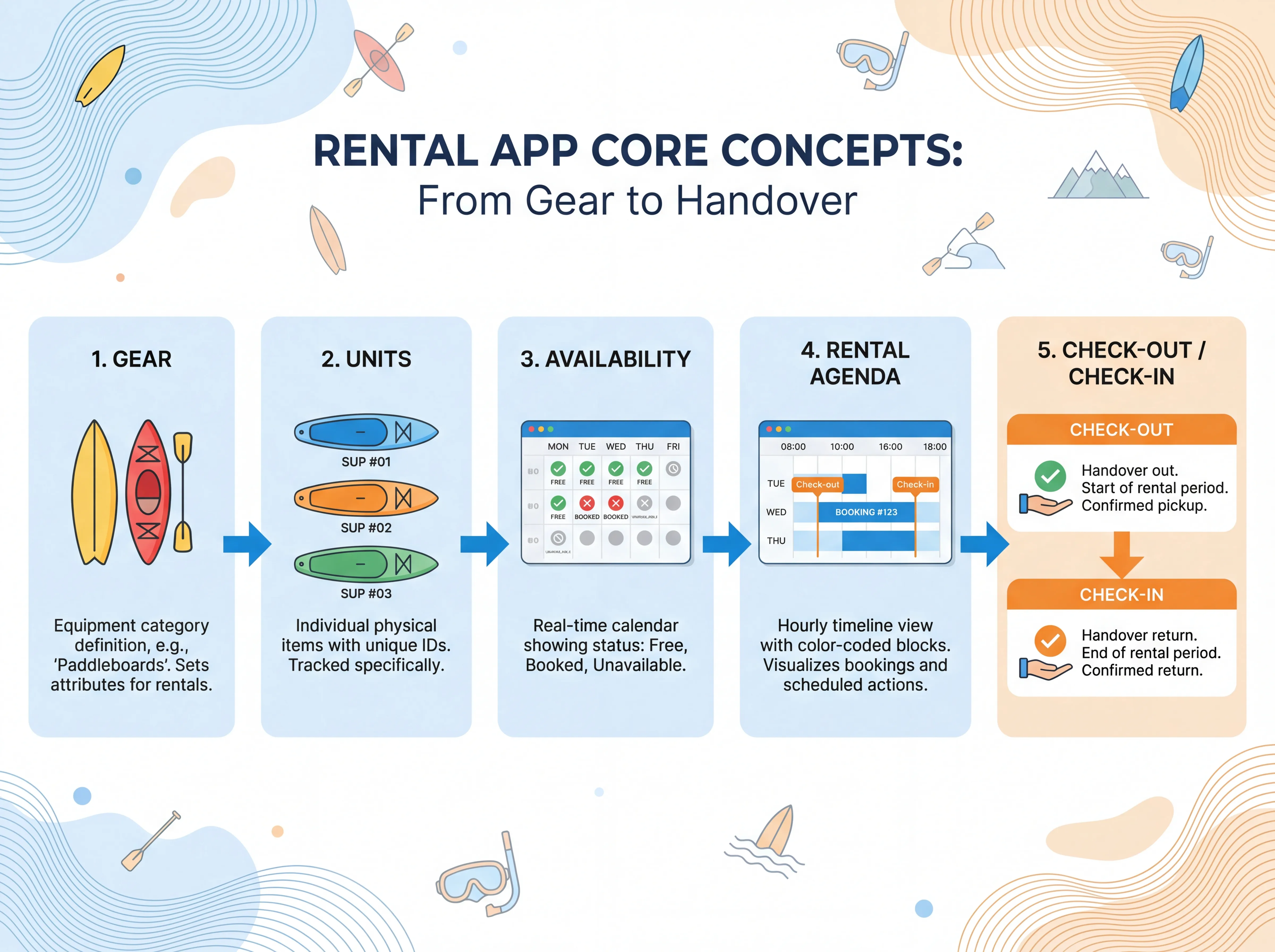
Gear is an equipment category — a type of thing you rent out. Think “Stand-Up Paddleboard,” “Wetsuit,” or “Mountain Bike.”
You create Gear categories in Resources > Gears. Each one defines what the equipment type is and how many individual items (units) you have.
A Unit is one specific, physical item inside a Gear category. If you have 10 stand-up paddleboards, that’s 10 units under the “Stand-Up Paddleboard” Gear category.
Each unit can have its own:
- Name (e.g., “SUP #01,” “SUP #02”)
- Purchase Date
- Last Check and Next Check dates — for tracking maintenance
Units are the atoms of your inventory. They’re what actually shows up on the Rental Agenda and gets booked by customers.
Rental Product
Section titled “Rental Product”A Rental product is the sellable offering you create in Resources > Products. It links to a Gear category and defines pricing by duration — for example, €15/hour or €40/day. You can set up degressive rates (longer durations get a lower per-hour price) and connect add-ons like insurance or helmets.
The product is what the customer sees in your online shop or POS. The Gear and Units are the operational backend that the product draws from.
Availability
Section titled “Availability”Availability is real-time. When a customer books a rental product, Bloowatch checks how many units of the linked Gear category are free at the requested time. If all units are booked or marked unavailable (maintenance, hold), the time slot won’t be offered.
You can manually block a unit using Add Unavailability on the Rental Agenda — useful for planned maintenance or holding gear for a VIP.
Rental Agenda
Section titled “Rental Agenda”The Rental Agenda is your command center for day-to-day operations. Find it at Planning > Rental tab.
It shows an hourly timeline with each unit as a row. Booking blocks appear color-coded by payment status (red = unpaid). You can:
- See at a glance which units are free, booked, or unavailable
- Click a booking block to edit it or check the customer in
- Switch between a detailed daily view and a multi-week overview
- Export rental data for reporting
Check-out and Check-in
Section titled “Check-out and Check-in”This is the operational handover moment. When a customer arrives, you check out the gear to them. When they return it, you check it in. This updates the unit’s status in real time so the next rental can proceed.
Coming soon: Barcode and QR code scanning for faster check-out/check-in (GOLD plan). For now, check-outs are logged through the Rental Agenda or POS.
What it is NOT
Section titled “What it is NOT”| People think… | But actually… |
|---|---|
| ”It’s just another way to book an activity” | Rentals don’t have instructors, sessions, or participant ratios. They’re about equipment and time slots, not group lessons. |
| ”I need to create Gear AND a session to rent something” | No sessions involved. You create a Gear category with units, then a Rental product with pricing. That’s it. |
| ”Rental and Activity inventory are connected” | They run on separate systems. A surfboard in your Gear inventory is not the same as a surfboard linked to a surf lesson’s equipment list. |
| ”I can manage my whole equipment fleet here” | The Rental App covers equipment that gets rented to customers. Internal-use-only gear (e.g., instructor boards that never get rented) doesn’t need to be in the Rental system. |
Why it matters
Section titled “Why it matters”If you’re renting out equipment, getting the Rental App concepts right from the start saves you headaches later:
- Accurate availability — Customers see what’s truly available online. No more overbooking or holding phantom inventory.
- Maintenance tracking — Every unit has inspection dates. You won’t accidentally rent out a paddleboard that’s due for its annual check.
- Clear pricing — Duration-based pricing with degressive rates means your pricing is transparent and consistent, whether it’s a walk-in or an online booking.
- Separate from activities — Rental operations have their own agenda, their own booking flow, and their own reporting. This keeps things clean when your school runs both lessons and rentals.
If you skip the setup — say, you try to use the activity system for rentals — you’ll fight against a data model that was built for instructor-led group sessions. Use the right tool for the job.
How it connects to other parts of Bloowatch
Section titled “How it connects to other parts of Bloowatch”The Rental App doesn’t live in isolation. Here’s how it plugs into the rest of the platform:
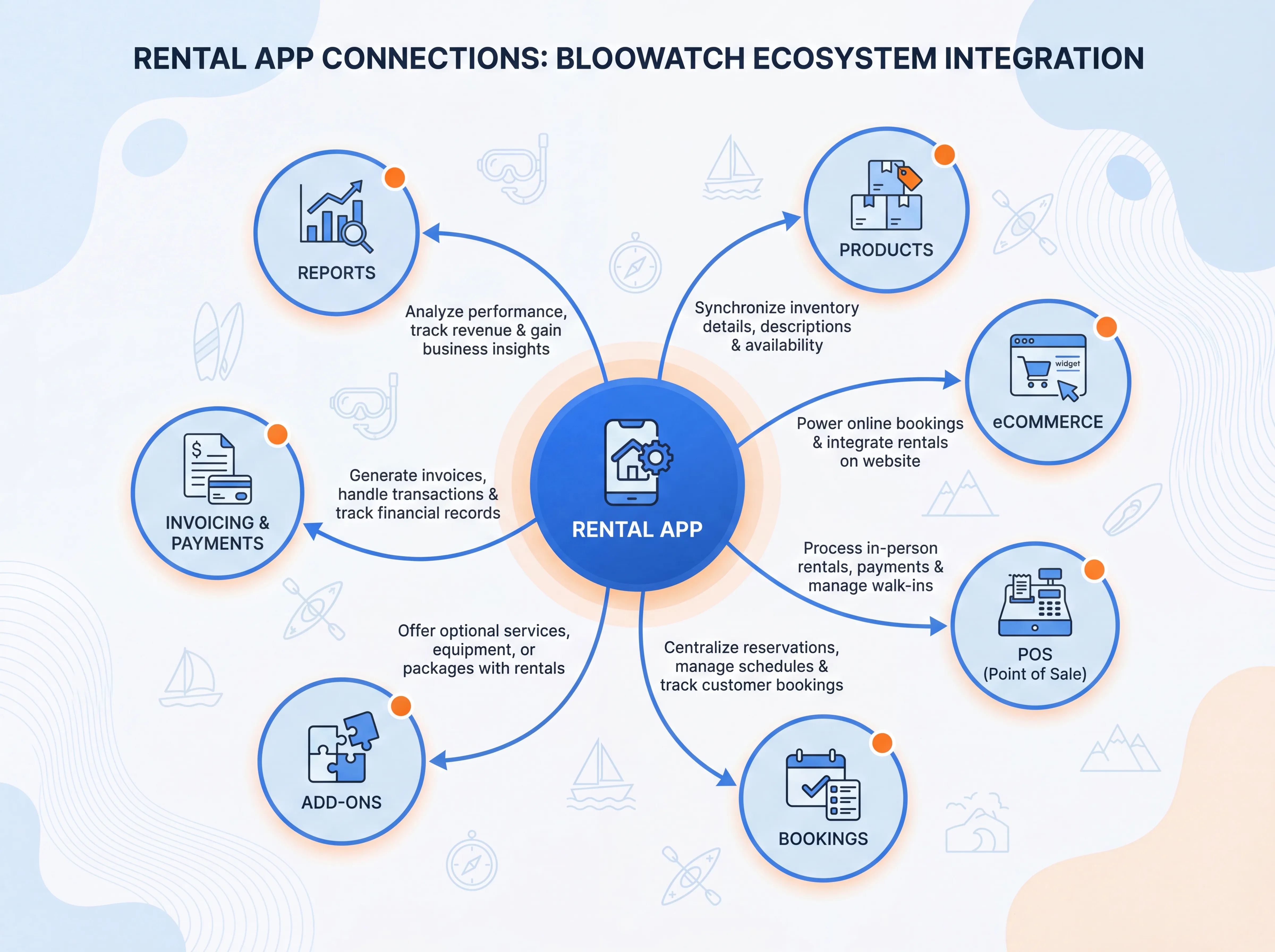
- Products — Every Rental product lives in your product catalog alongside Classes, Courses, and Items. Customers can book a surf lesson and a board rental in the same cart.
- eCommerce — Rental products appear in your online booking widget, with live availability. Customers choose a time slot, a duration, and pay online.
- POS — Walk-in rentals go through the same POS as activity bookings. The checkout flow works identically — pick product, set duration, charge.
- Bookings — Rental bookings show up in the Bookings list with the same status tracking (Confirmed, Pending, Cancelled), payment tracking, and invoicing as any other booking type.
- Add-Ons — You can attach add-on items (insurance, deposit, accessories) to a Rental product, just like you would for a Class or Course.
- Invoicing & Payments — All financial features (invoices, credit notes, promo codes, payment links) work with Rental bookings.
- Reports — Rental revenue appears in your Sales reports. Inventory stats (coming soon) will give you utilization analytics per gear category.
