Create a Session
Quick path: Planning → + Session → Select calendar → Fill details → Save
What this helps you do
Section titled “What this helps you do”A session is a scheduled time slot for an activity on your agenda. It’s where customers get assigned when they book. You need at least one session before you can take bookings.
Before you start
Section titled “Before you start”- At least one Activity Calendar exists (Resources > Activities)
- You know the date and time for the session
1. Open the session modal
Section titled “1. Open the session modal”Navigate to Planning > Activities. Click the + SESSION button at the bottom of the sessions table.
You can also do this from Home — the + SESSION button at the bottom of the daily sessions table opens the same modal.
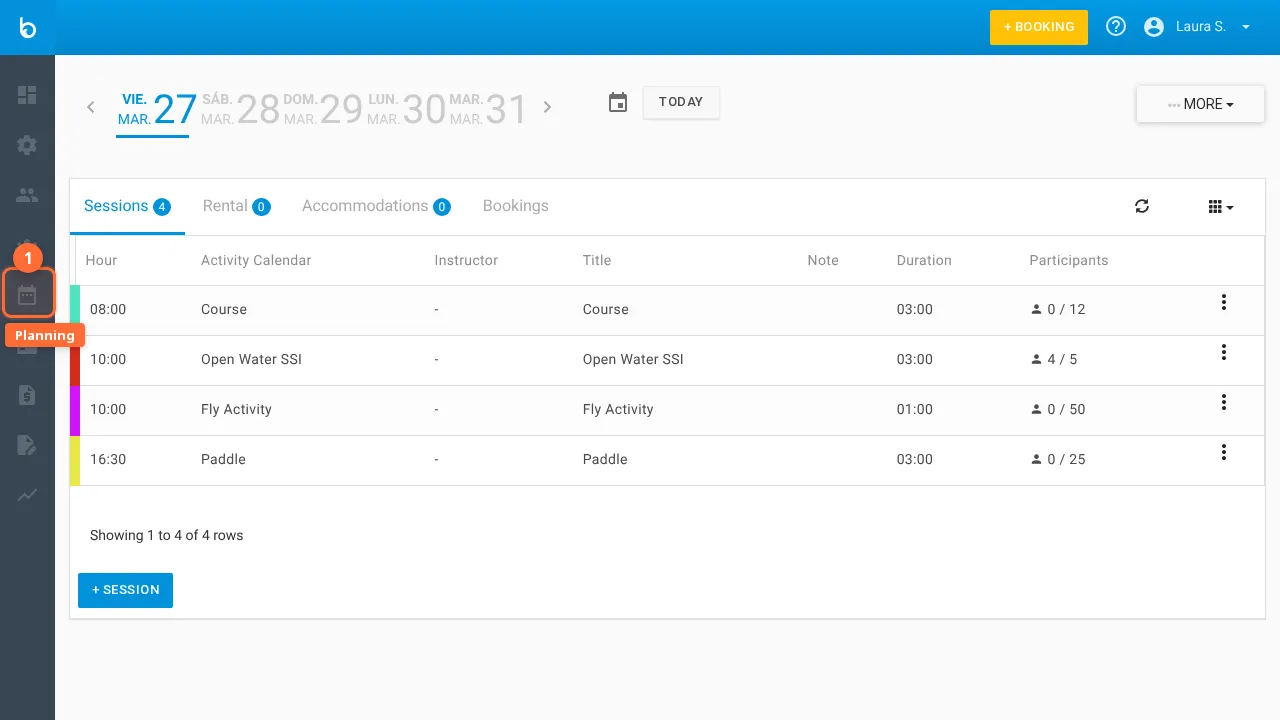
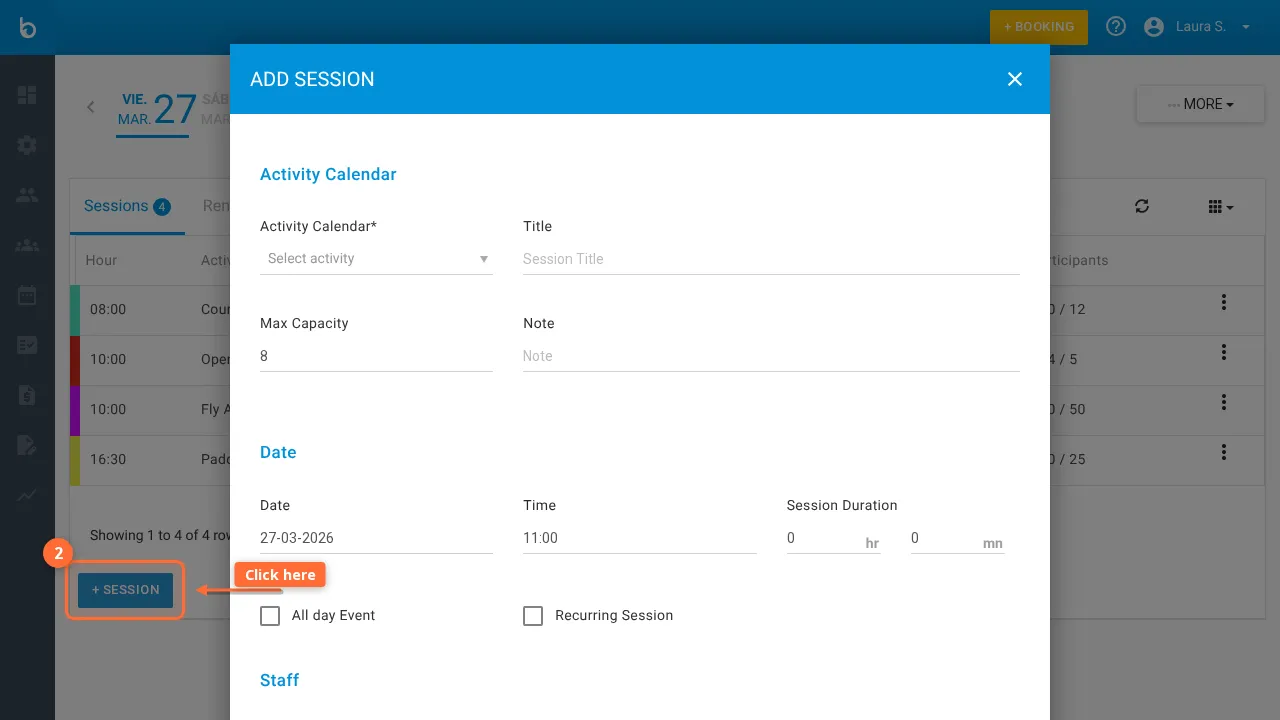
2. Select an activity calendar
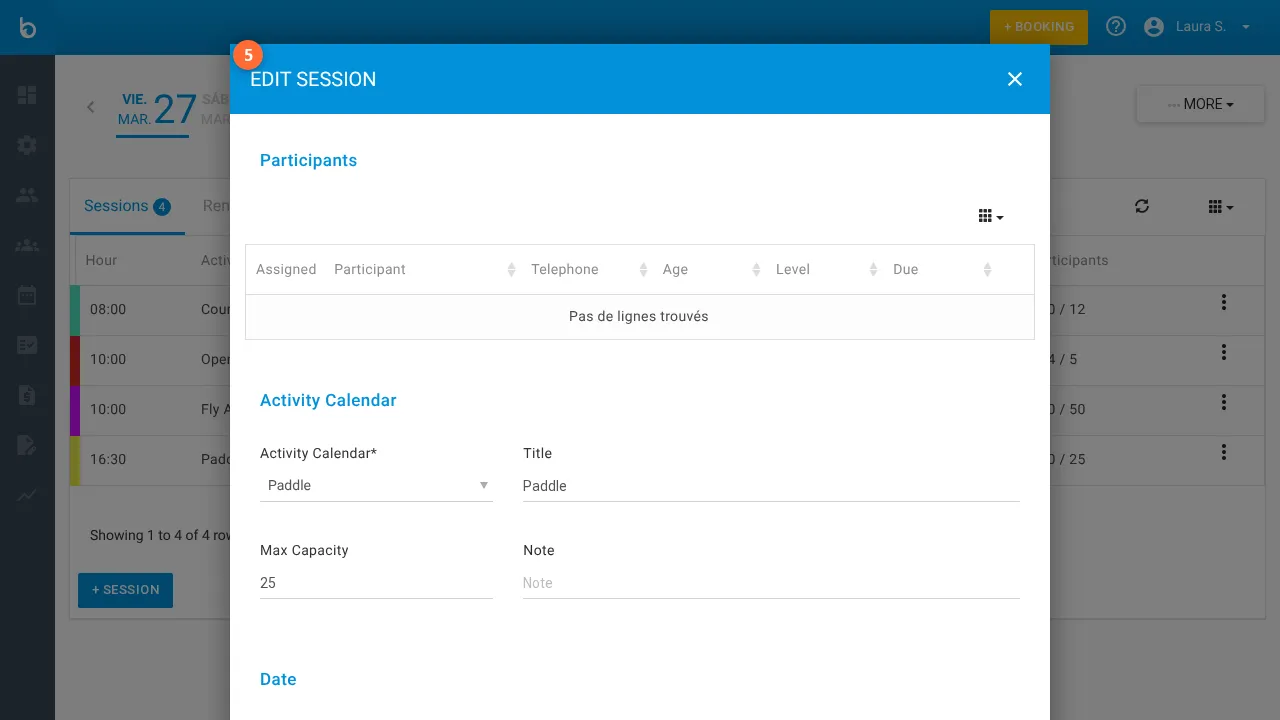
Section titled “2. Select an activity calendar”Click the Activity Calendar dropdown and select the calendar this session belongs to.
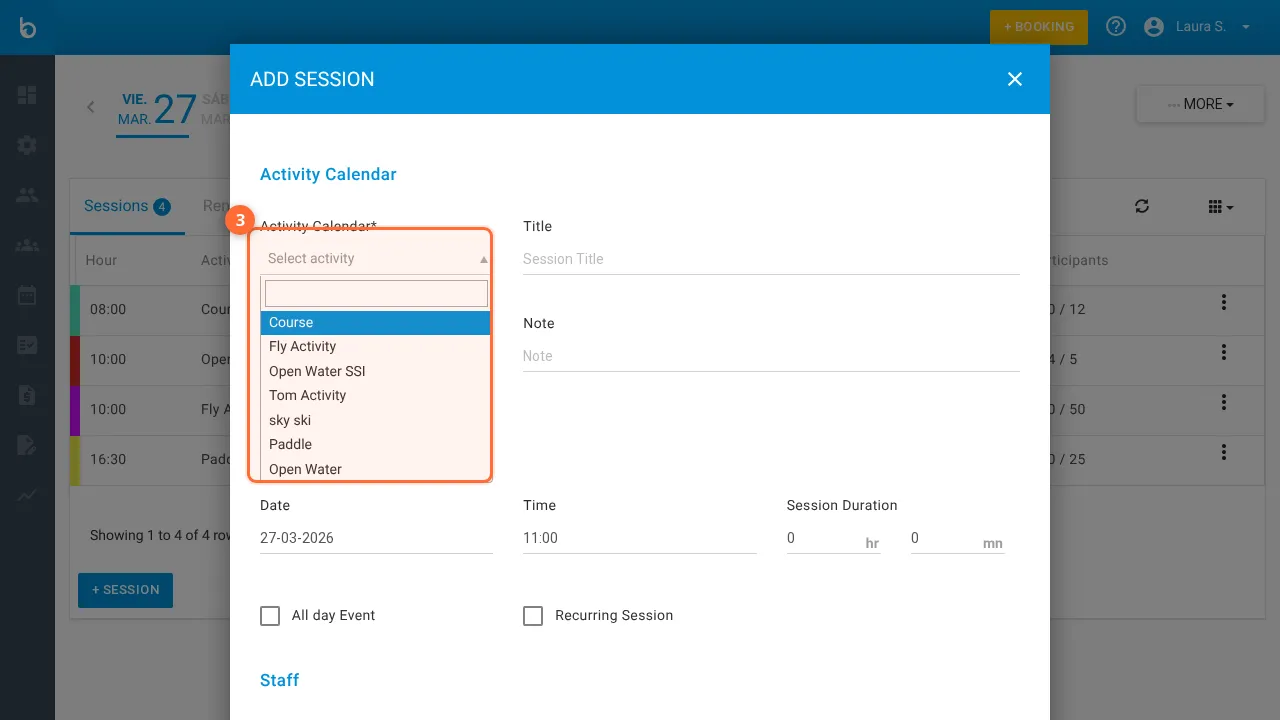
Watch out: Selecting a calendar auto-fills Title, Max Capacity, and Session duration from the calendar’s defaults. You can override any of these.
3. Fill in the session details
Section titled “3. Fill in the session details”| Field | Value | Notes |
|---|---|---|
| Activity Calendar * | Select from dropdown | Required. The calendar this session belongs to. |
| Title | e.g. “Morning Surf” | Auto-filled from calendar name. Override for a custom title. |
| Max Capacity | e.g. 8 | Auto-filled. Maximum participants. |
| Note | Free text | Optional. Internal note visible to staff. |
| Date | e.g. 2026-03-28 | Defaults to today. |
| Time | e.g. 10:00 | Session start time. |
| Session duration | e.g. 2 hr 0 mn | Auto-filled from calendar. |
| All day | Checkbox | For all-day sessions (no specific start time). |
| Staff | Select from dropdown | Optional. Assign an instructor. |
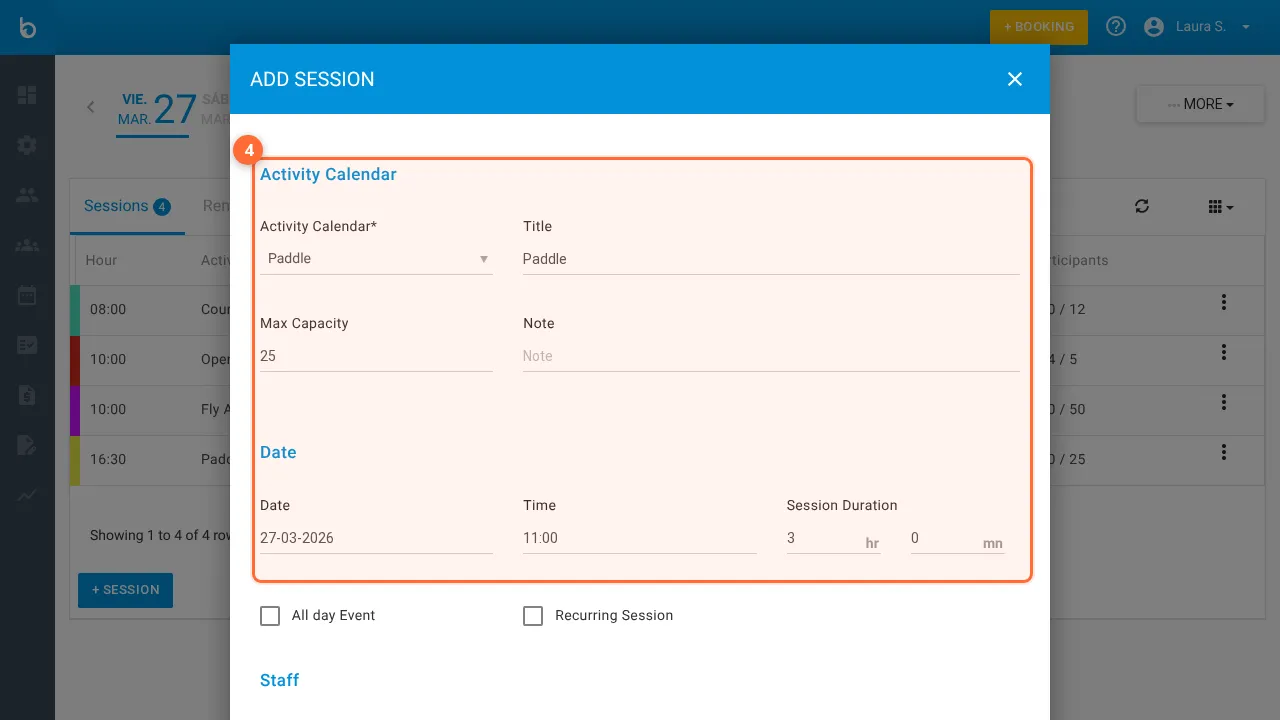
4. Save
Section titled “4. Save”Click Add Session. The modal closes and your session appears on the Agenda.
What should happen next
Section titled “What should happen next”- Your session appears as a colored block on the Agenda at the specified date and time
- It shows the title, participant count (0), and capacity
- Customers can now book this session through the POS or online widget
- Click the session’s menu (⋮) to edit, duplicate, or delete it
Common mistakes
Section titled “Common mistakes”| Mistake | Why it happens | Fix |
|---|---|---|
| ”Session doesn’t appear on the agenda” | Wrong date selected or viewing a different week | Use the week navigation arrows to find the correct date |
| ”No staff in the dropdown” | Staff member isn’t linked to this activity calendar | Edit the staff member in Resources > Staff and add the calendar |
| ”Capacity is wrong” | Calendar default was auto-filled | Override the Max Capacity field before saving |
If it still doesn’t work
Section titled “If it still doesn’t work”- Verify the session date matches the week you’re viewing on the Agenda
- Check that the Activity Calendar exists and is active
- Contact Bloowatch Support via the chat widget
