Tide-Dependent Session Scheduling
Quick path: Planning → + Session → Enable Recurring → Hour depends on tide → Set offset → Save
What this helps you do
Section titled “What this helps you do”Coastal activities don’t follow a fixed clock. A surf lesson needs low tide, a snorkeling trip needs high tide, and the exact time changes every day. Instead of manually adjusting each session, you tell Bloowatch which tide event to track, how far before or after it the session should start, and how to round the time. Bloowatch calculates the rest.
Every session in the recurring series gets its own start time based on the tide data for that specific day. Your Agenda shows the real, adjusted times — not a placeholder.
Before you start
Section titled “Before you start”- Your organization’s tide data is configured (Settings > Organization > Tide). Without this, Bloowatch can’t look up tide times for your location.
- At least one Activity Calendar exists (Resources > Activities).
- You know which tide event your activity depends on (low tide or high tide).
- You know the offset — how many hours/minutes before or after the tide the session should start.
1. Go to the Agenda
Section titled “1. Go to the Agenda”Click Planning in the left sidebar. The Activity Agenda shows the weekly schedule with all your calendars.
2. Click ”+ Session”
Section titled “2. Click ”+ Session””Click the + SESSION button in the toolbar. The session creation modal opens.
3. Fill in the session basics
Section titled “3. Fill in the session basics”Select your Activity Calendar, set the Title, Max Capacity, and Session duration. Leave the Time field as-is — it won’t be used for tide-dependent sessions (the tide calculation replaces it).
4. Enable Recurring Session
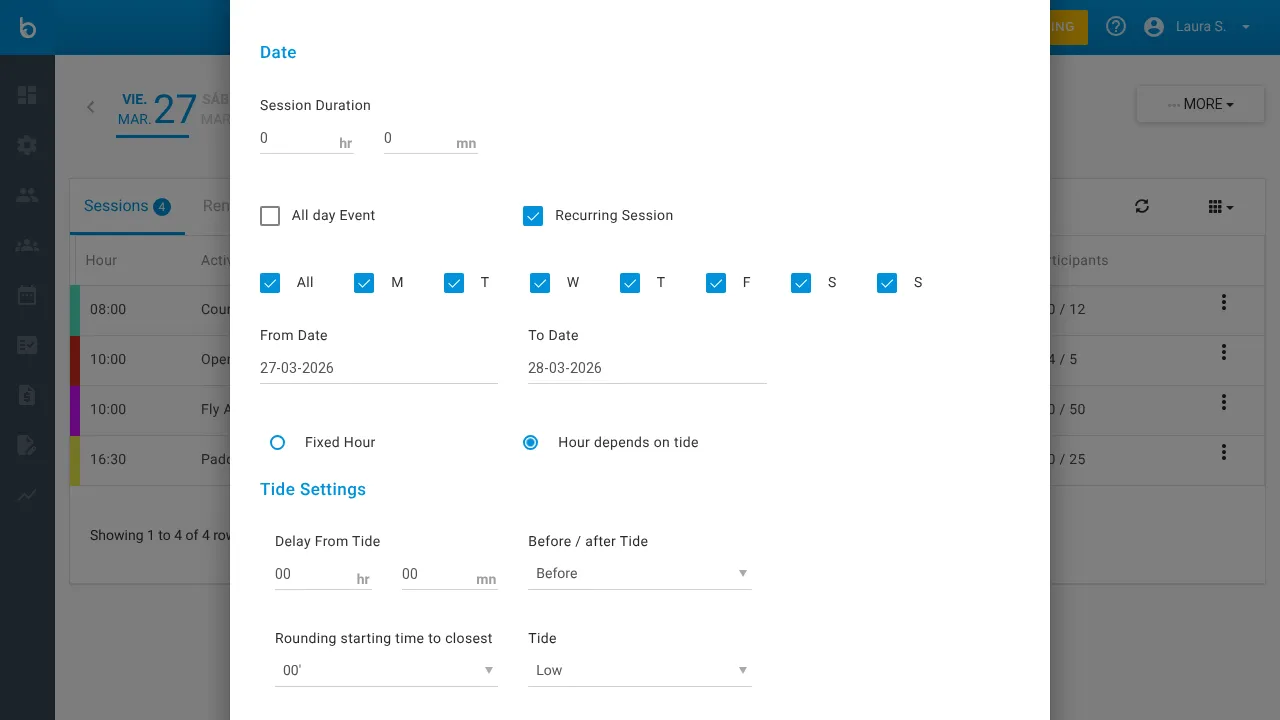
Section titled “4. Enable Recurring Session”Check the Recurring Session checkbox. New fields appear:
- Day-of-week checkboxes (All, M, T, W, T, F, S, S)
- From Date and To Date for the recurrence range
- Time mode radio buttons: Fixed Hour and Hour depends on tide
5. Select “Hour depends on tide”
Section titled “5. Select “Hour depends on tide””Click the Hour depends on tide radio button. A Tide Settings section appears below with four fields.
6. Configure the tide offset
Section titled “6. Configure the tide offset”Set the Delay From Tide field. This is how far before or after the tide event your session should start.
| Field | What to enter | Example |
|---|---|---|
| Delay From Tide | Hours and minutes | 01 hr 30 mn |
A surf school that wants sessions 1.5 hours before low tide would enter 01 hr 30 mn here.
7. Choose before or after
Section titled “7. Choose before or after”In the Before / after Tide dropdown, select:
- Before — session starts before the tide event (most common for low-tide surf lessons: you want to be in the water as the tide drops)
- After — session starts after the tide event (useful when you need the tide to have turned before going out)
8. Set the rounding
Section titled “8. Set the rounding”The Rounding starting time to closest dropdown controls how the calculated time gets rounded:
| Rounding | Effect | Example |
|---|---|---|
| 00’ | No rounding — use the exact calculated time | 09:17 stays 09:17 |
| 15’ | Round to the nearest 15 minutes | 09:17 becomes 09:15 |
| 30’ | Round to the nearest 30 minutes | 09:17 becomes 09:30 |
Watch out: Most schools use 15’ or 30’ rounding. Exact times (00’) can produce awkward start times like 09:07 or 14:42, which are harder to communicate to customers and staff.
9. Select the tide event
Section titled “9. Select the tide event”In the Tide dropdown, choose:
- Low — session time is calculated relative to low tide
- High — session time is calculated relative to high tide
10. Set the days and date range
Section titled “10. Set the days and date range”Check the days of the week this session should repeat on, and set the From Date and To Date for the season.
11. Save
Section titled “11. Save”Click Add Session. Bloowatch generates one session for each selected day within the date range, each with its own tide-adjusted start time.
How Bloowatch calculates session times
Section titled “How Bloowatch calculates session times”For each day in the recurrence range, Bloowatch:
- Looks up the tide data for your location on that date
- Finds the selected tide event (low or high) closest to midday
- Applies the offset (e.g., 1h30 before)
- Rounds the result according to your rounding setting
- Sets that as the session start time
Example: Low tide on March 15 is at 10:47. You configured “1 hr 30 mn before low tide, round to 15 min.” The calculation: 10:47 minus 1:30 = 09:17, rounded to 15 min = 09:15. The session starts at 09:15.
What should happen next
Section titled “What should happen next”- Your Agenda shows sessions on the selected days, each with a different start time
- Hover over any session to see its actual start time for that day
- The sessions are fully bookable — customers see the tide-adjusted times in the online widget
- Staff schedules reflect the real times
Verify tide accuracy
Section titled “Verify tide accuracy”After creating the sessions, spot-check a few days:
- Click on a session on the Agenda to see its start time
- Compare it with the tide table for that date (you can use a site like tide-forecast.com or your local harbor authority)
- Verify the offset and rounding match what you configured
If times look off, check that your organization’s tide data source is configured for the correct location (Settings > Organization > Tide).
Override individual sessions
Section titled “Override individual sessions”Sometimes the tide data is wrong, or conditions change. You can manually override any individual session without affecting the rest of the series:
- Click on the session in the Agenda
- Edit the Time field to your preferred start time
- Save the session
This overrides the tide calculation for that one session only. All other sessions in the series keep their calculated times.
Watch out: If you delete and re-create the recurring series, your manual overrides are lost. Make a note of any manual changes before regenerating.
Common mistakes
Section titled “Common mistakes”| Mistake | Why it happens | Fix |
|---|---|---|
| All sessions show the same time | You selected Fixed Hour instead of Hour depends on tide | Edit the recurring session and switch to tide-dependent mode |
| Sessions appear at strange times (3 AM, midnight) | Tide data is configured for the wrong location | Check Settings > Organization > Tide and verify the location |
| ”No tide data available” message | Tide data isn’t set up for your organization | Ask your admin to configure tide data in Settings > Organization |
| Rounding produces unexpected times | Using 00’ rounding with highly variable tides | Switch to 15’ or 30’ rounding for more predictable schedules |
If it still doesn’t work
Section titled “If it still doesn’t work”- Verify tide data is configured: Settings > Organization > Tide
- Check that the date range falls within a period where tide data is available
- Try creating a single test session for tomorrow to isolate the issue
- Contact Bloowatch Support via the chat widget — have your location and date range ready
