Create a Flexible Sessions Product
Quick path: Resources → Products → + New product → Flexible Sessions → Fill details → Save
What this helps you do
Section titled “What this helps you do”A Flexible Sessions product is the most common product type in Bloowatch. It represents a single-session activity that customers can book — like a 2-hour surf lesson, a guided dive, or a private ski class.
Once you create this product, it becomes available in the POS for walk-in bookings and, if enabled, in your online booking widget.
Before you start
Section titled “Before you start”- At least one Activity Calendar exists (Resources > Activities > Calendars). If not, create one first — the product needs to be linked to a calendar.
- You know the price you want to charge per person
- You know which tax rate applies to this product
1. Go to Resources > Products
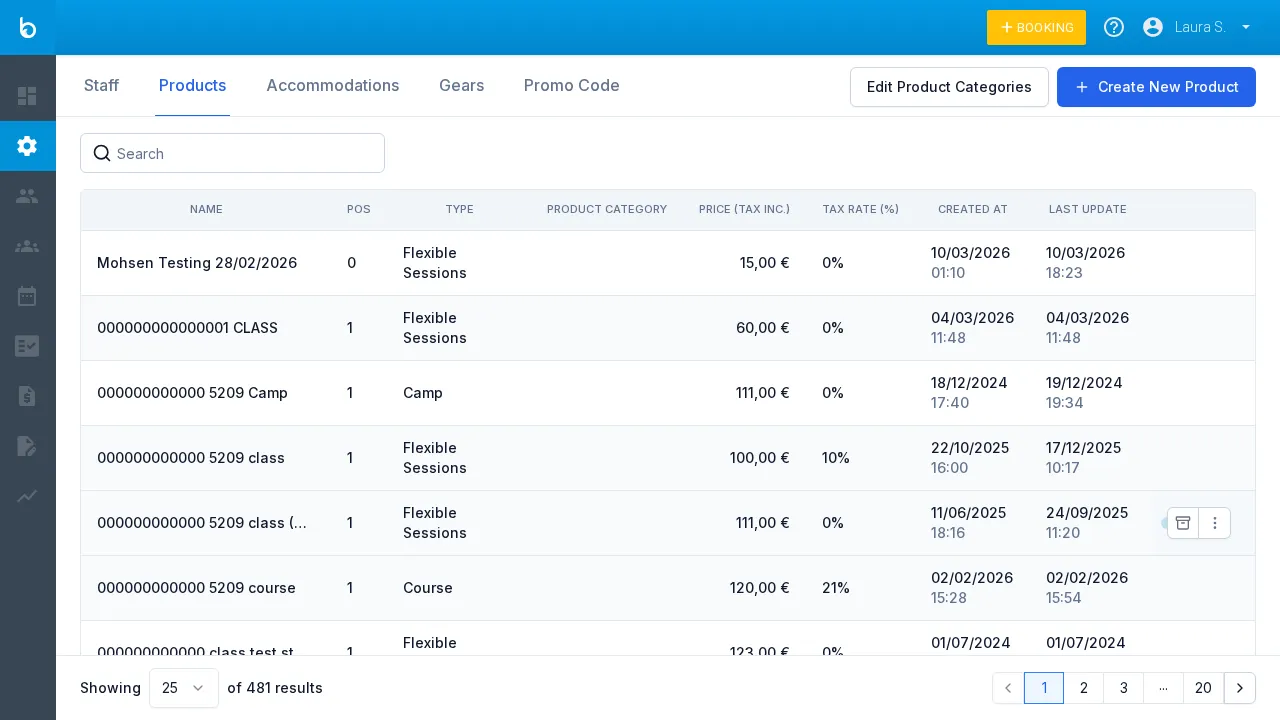
Section titled “1. Go to Resources > Products”Click Resources in the left sidebar, then click the Products tab. You’ll see a searchable list of all existing products with their type, price, and tax rate.
2. Click ”+ Create new product”
Section titled “2. Click ”+ Create new product””Click the + Create new product button in the top-right corner. A panel opens asking you to choose the product type.
3. Choose “Flexible Sessions”
Section titled “3. Choose “Flexible Sessions””Select Flexible Sessions from the product type selector. This is the right choice for individual lessons, group classes, guided tours, and any activity sold as a single session.
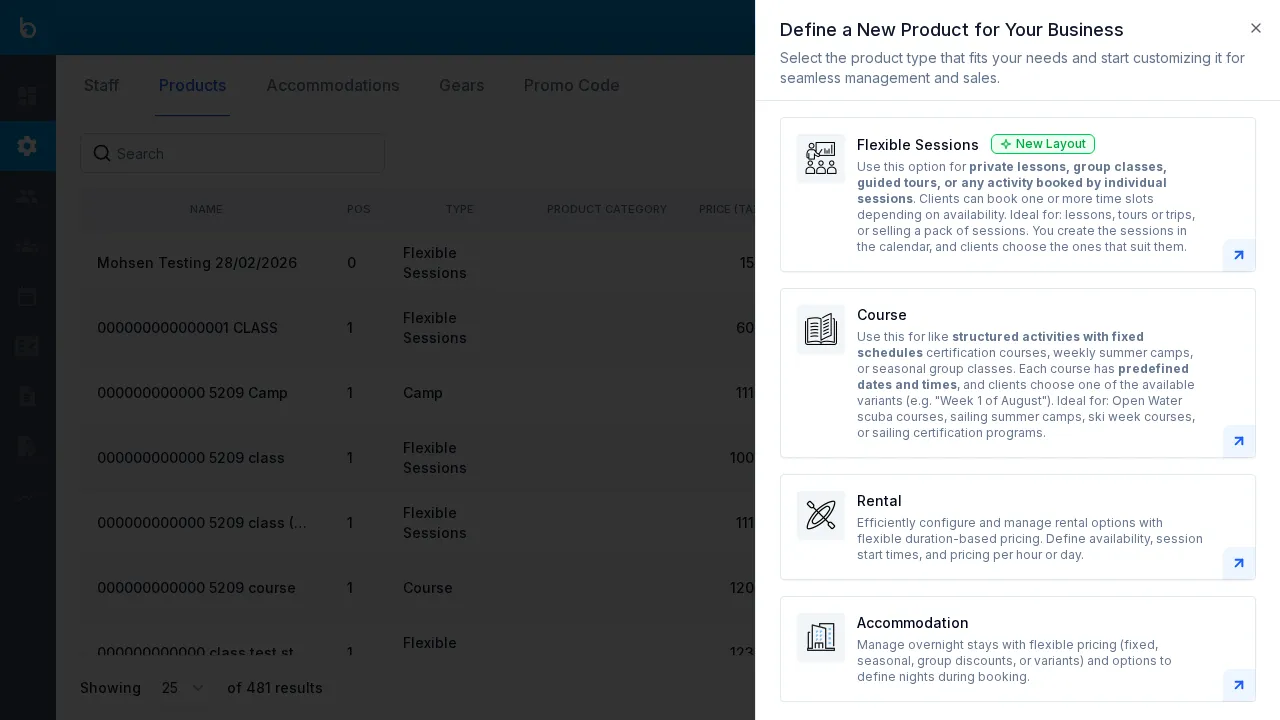
Not sure which type? Use Flexible Sessions if customers book one session at a time. Use Course if the product spans multiple sessions with a fixed schedule. See Key Concepts in Bloowatch for a comparison of all six product types.
4. Fill in the General Information
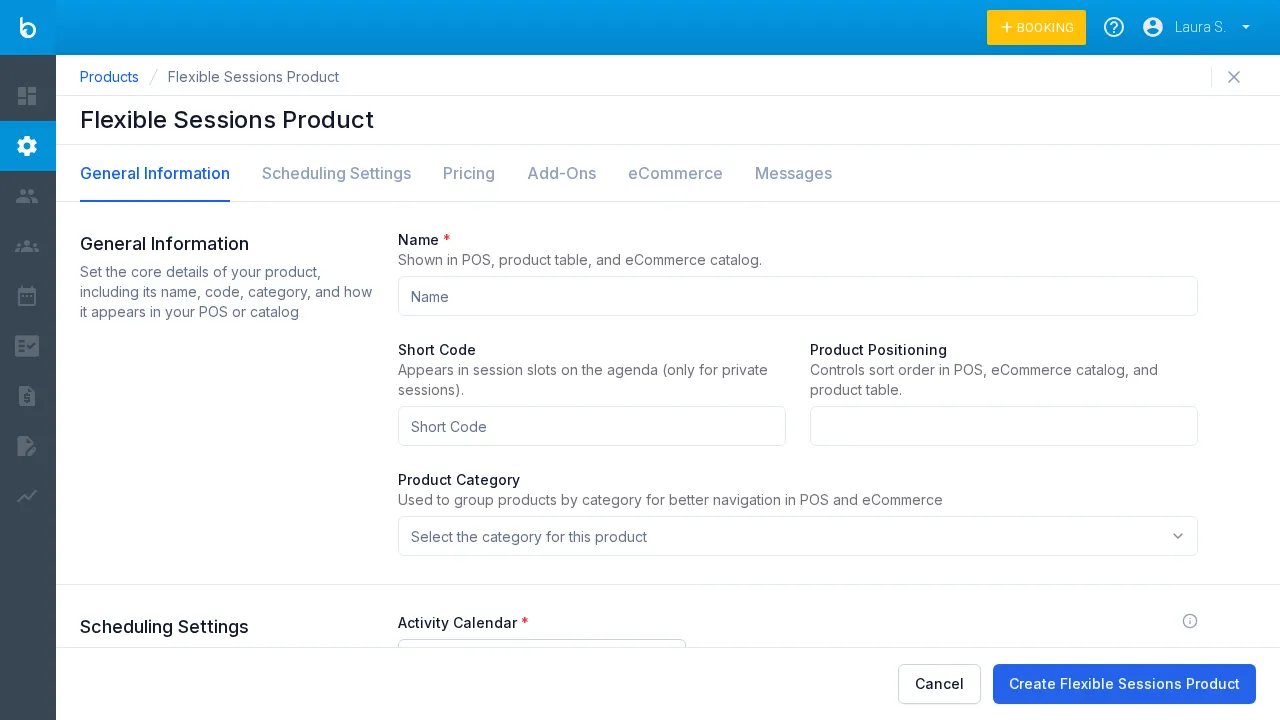
Section titled “4. Fill in the General Information”The creation form is organized into tabs. Start with the General Information tab:
| Field | Value | Notes |
|---|---|---|
| Name * | e.g. “2-Hour Surf Lesson” | Required. Shown in POS, product list, and eCommerce catalog. |
| Short code | e.g. “SURF” | Optional. Appears on session slots in the Agenda for private sessions. |
| Product positioning | e.g. 1 | Optional. Sort order in POS and catalog. |
| Product category | Select from dropdown | Optional. Groups products for POS and eCommerce navigation. |
5. Configure scheduling
Section titled “5. Configure scheduling”Switch to the Scheduling Configuration tab:
| Field | Value | Notes |
|---|---|---|
| Activity Calendar * | Select from dropdown | Required. Links the product to an activity calendar and its sessions. |
| Number of sessions * | e.g. 1 | Required. How many sessions are included. Default: 1. |
| Private sessions | Checkbox | Optional. Enable if customers can book the entire session exclusively. |
| Availability periods | Checkbox | Optional. Restrict when this product can be booked. |
| Trips | Checkbox | Optional. Enable to show departure points (useful for dive centers). |
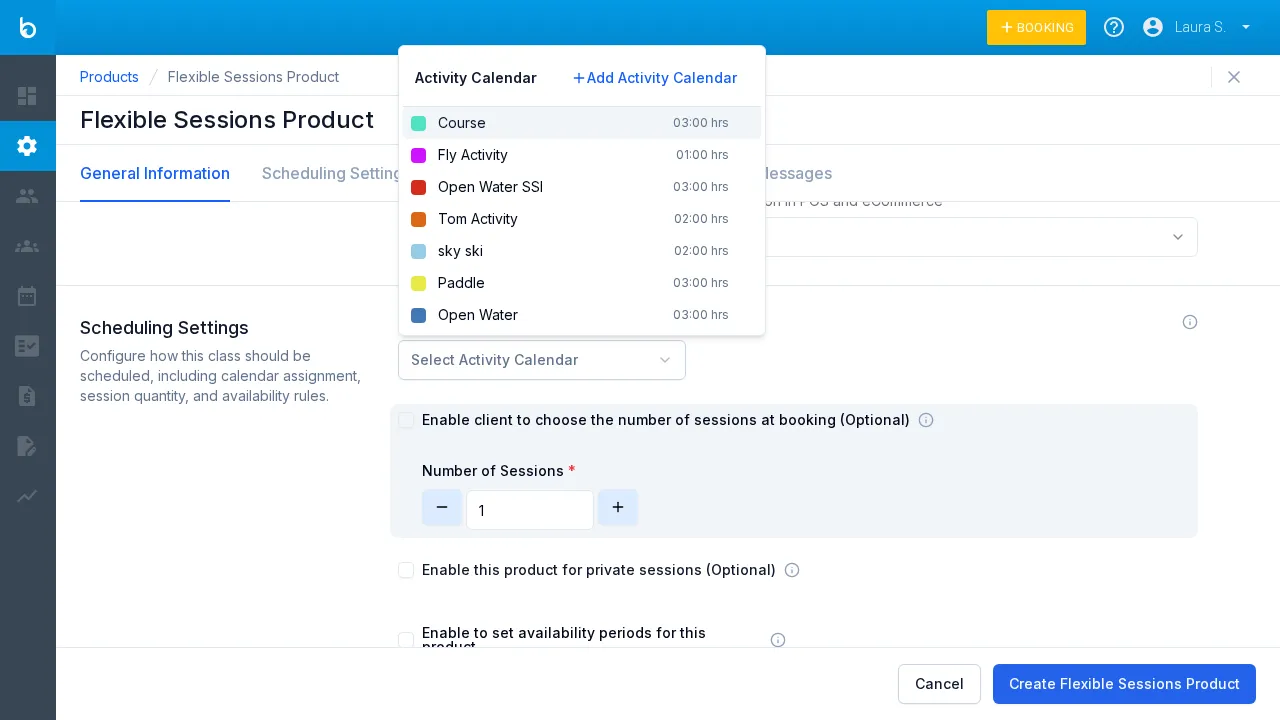
Watch out: The Activity Calendar dropdown shows all available calendars with their default duration. You can link multiple calendars to a single product if it’s offered across different activities.
6. Set the price
Section titled “6. Set the price”Switch to the Pricing tab:
| Field | Value | Notes |
|---|---|---|
| Price (tax included) | e.g. 50 | The per-person price including tax. |
| Tax rate * | Select from dropdown | Required. Select the applicable rate (e.g. “Tax 0%”, “VAT 21%”). |
| Seasonal pricing | Checkbox | Optional. Enable to set different prices by season. |
The pricing section offers three modes:
- Fixed price — a single price per person (most common)
- Group discount — lower price as group size increases
- Static price — one flat price regardless of participant count
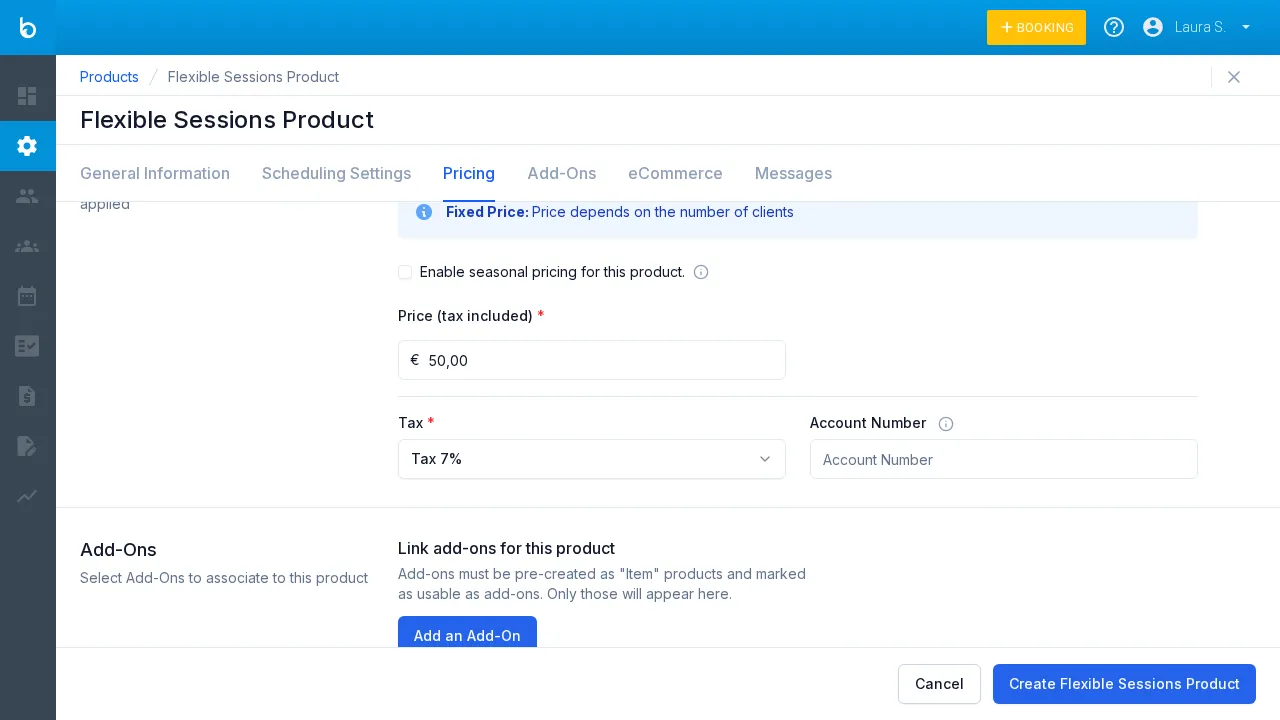
For detailed pricing configuration, see Configure Product Pricing.
7. Save the product
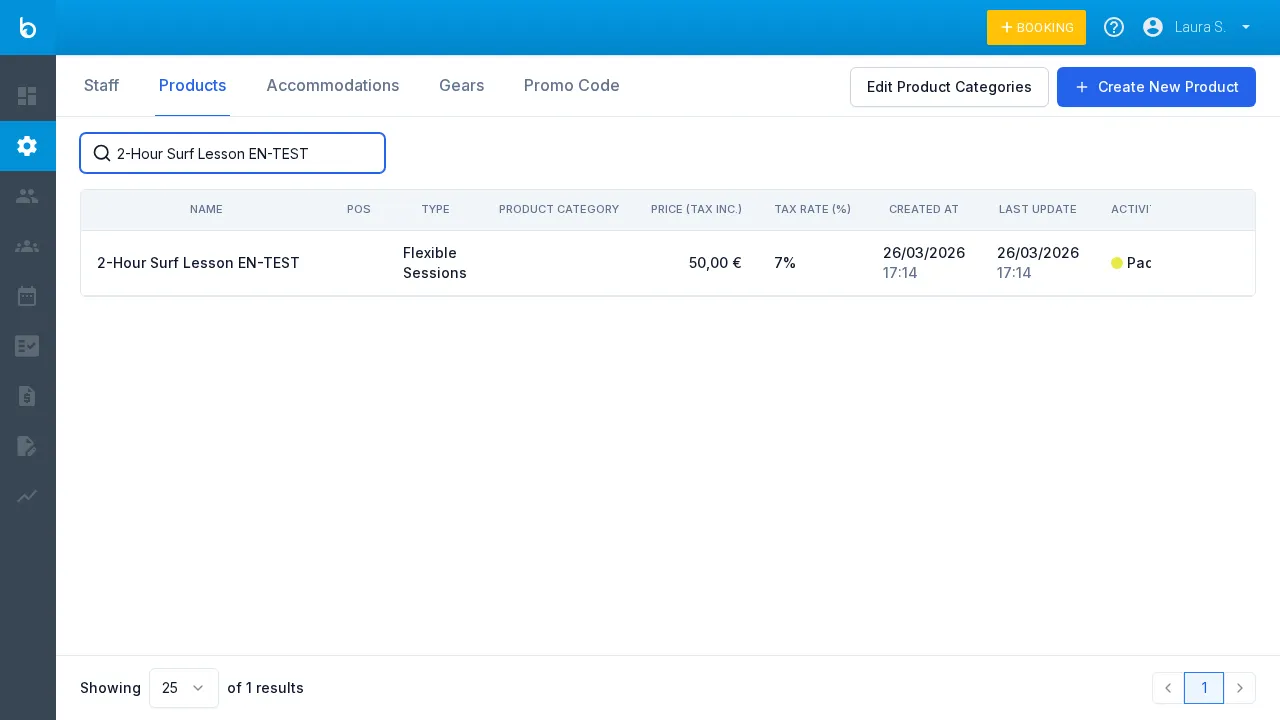
Section titled “7. Save the product”Click Create flexible sessions product. The form closes and you’re returned to the products list where your new product now appears.
What should happen next
Section titled “What should happen next”- Your product appears in the Products list under Resources
- It’s immediately available for bookings through the POS
- If you enable eCommerce for this product, it will appear in your online booking widget
- Sessions from the linked activity calendar can now be booked with this product
Common mistakes
Section titled “Common mistakes”| Mistake | Why it happens | Fix |
|---|---|---|
| ”No calendars in the dropdown” | No activity calendar has been created yet | Go to Resources > Activities and create a calendar first |
| ”Product doesn’t appear in POS” | Product was archived accidentally | Check the archived products filter in the products list |
| ”Wrong price showing” | Tax was included twice or the wrong tax rate was selected | Edit the product and verify the price and tax rate settings |
| ”Can’t book more than 1 session” | Number of sessions set to 1 | This is correct for Flexible Sessions — each booking covers one session. Use Course if you need multi-session packages. |
If it still doesn’t work
Section titled “If it still doesn’t work”If your product isn’t behaving as expected:
- Verify the Activity Calendar link is correct (Resources > Products > click your product > Scheduling tab)
- Check that sessions exist on the linked calendar (Planning > Activity Agenda)
- Contact Bloowatch Support via the chat widget with your product name and a description of the issue
