Send Bulk SMS from the Agenda
Quick path: Agenda → Session menu (⋮) → Send SMS → Select recipients → Write message → Send
What this helps you do
Section titled “What this helps you do”Need to warn participants about a last-minute schedule change, a weather cancellation, or just send a friendly reminder? Bulk SMS lets you message all participants in a session directly from the Agenda. Write a freeform message or use a template with merge tags that auto-fill each participant’s name, session details, and your school name.
Before you start
Section titled “Before you start”- A session exists on the Agenda with at least one participant who has a phone number
- Your school has SMS credits available (the balance is shown at the bottom of the SMS panel)
1. Open the session context menu
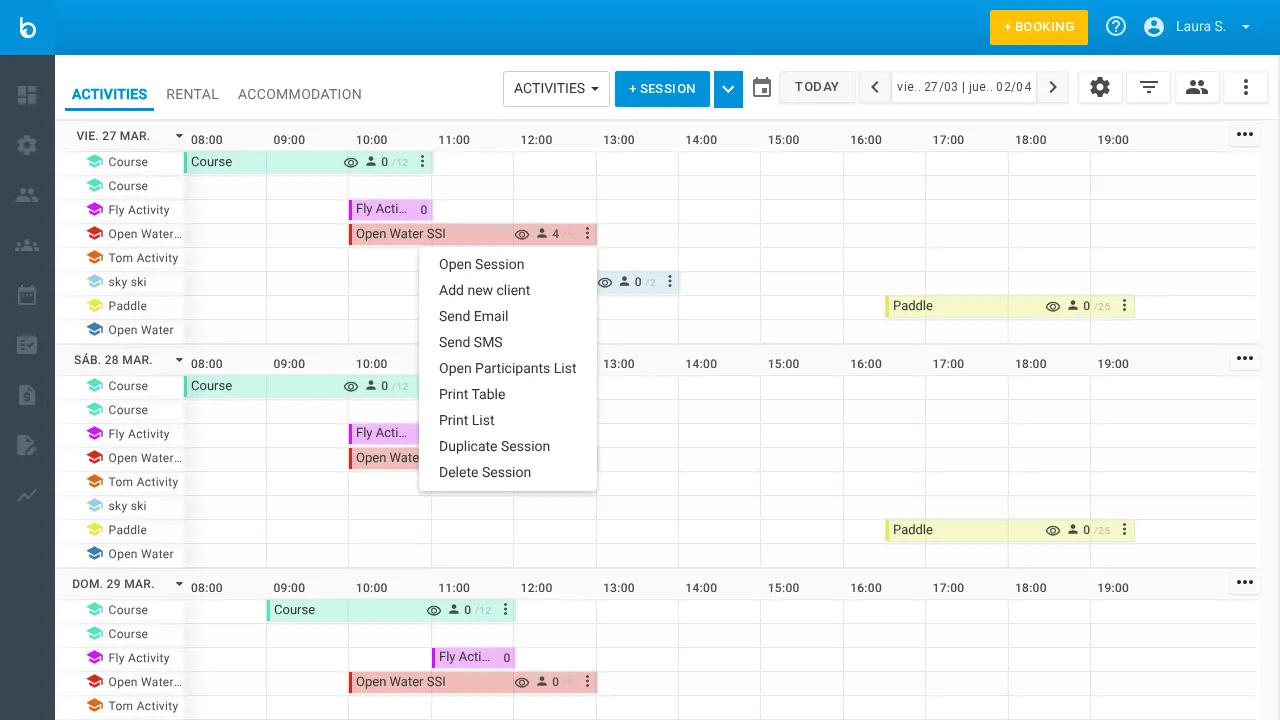
Section titled “1. Open the session context menu”On the Agenda (Activity Agenda view), click the three-dot menu (⋮) on the session block you want to message.
2. Click “Send SMS”
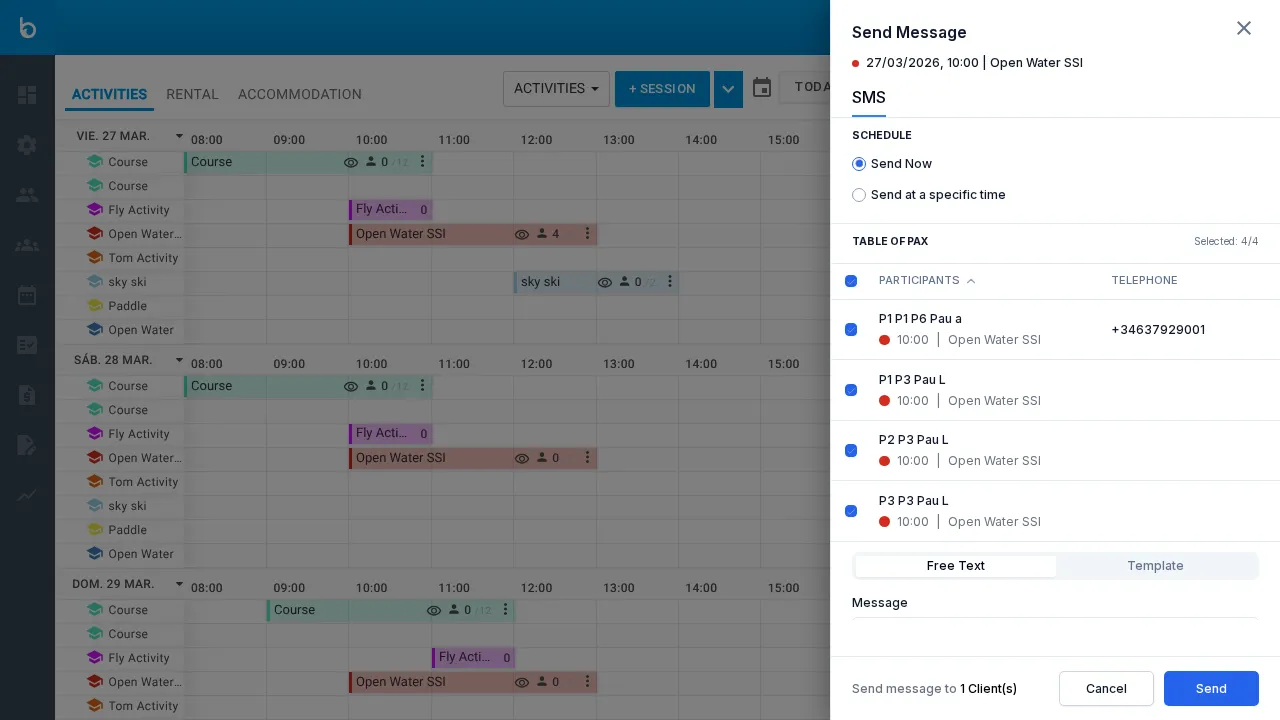
Section titled “2. Click “Send SMS””Click Send SMS from the dropdown. A slide-in panel opens on the right side titled Send Message.
The panel header shows the session date, time, and product name (e.g., “10/03/2026, 08:00 | Course”).
3. Choose when to send
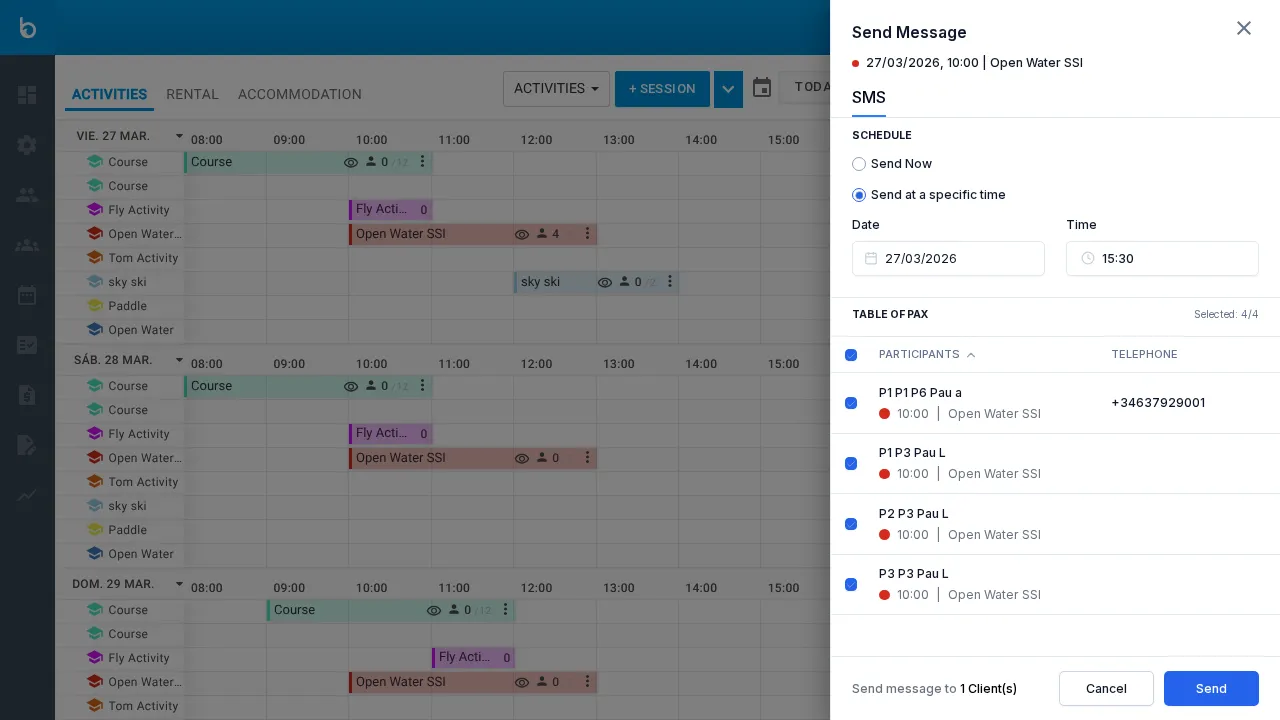
Section titled “3. Choose when to send”Under SCHEDULE, select one of:
| Option | Description |
|---|---|
| Send now | Send the SMS immediately when you click Send |
| Send at a specific time | Schedule delivery for a specific date and time |
If you choose scheduled delivery, Date and Time fields appear.
4. Select recipients
Section titled “4. Select recipients”The PAX TABLE section lists all participants with their names and phone numbers. Use the checkboxes to select who should receive the SMS.
- Check individual participants, or use the header checkbox to select all
- The counter shows “Selected: X/Y” to track your selection
- Participants without phone numbers appear but cannot receive SMS
5. Write the message
Section titled “5. Write the message”Choose between two message modes using the tabs below the participant list:
Free text — Write a custom message from scratch in the text area.
Template — Use the default template with merge tags that auto-fill per recipient:
| Merge tag | Replaced with |
|---|---|
firstname | Participant’s first name |
product_name | Product/activity name |
session_date_time | Session date and time |
school_name | Your school/business name |
You can edit the template text before sending.
Watch out: SMS credits are consumed per message per recipient. A message to 10 participants uses 10 credits. Long messages (over 160 characters) may count as 2 credits each.
6. Send
Section titled “6. Send”The footer shows “Send message to X client(s)” confirming the recipient count. Click Send to send (or schedule) the SMS.
Click Cancel to discard without sending.
What should happen next
Section titled “What should happen next”- The SMS is sent (or scheduled) to all selected participants
- There is no in-app delivery confirmation — check your SMS provider dashboard for delivery status
- The session’s booking records are not modified by sending an SMS
- Your SMS credit balance decreases by the number of messages sent
Common mistakes
Section titled “Common mistakes”| Mistake | Why it happens | Fix |
|---|---|---|
| ”Some participants didn’t get the SMS” | They don’t have a phone number on file | Add a phone number to the client’s profile in Clients |
| ”Credits ran out mid-send” | Not enough credits for all recipients | Purchase more SMS credits in Settings before sending |
| ”Message was too long” | Over 160 characters counts as 2 SMS | Shorten the message or accept the extra credit usage |
If it still doesn’t work
Section titled “If it still doesn’t work”- Verify the participants have valid phone numbers with country codes
- Check your SMS credit balance at the bottom of the SMS panel
- Contact Bloowatch Support via the chat widget
